Diagnosing Agent Browser display issues
Use this article to diagnose and resolve issues where the Datto RMM Agent Browser or Support Request window does not display correctly. Covered symptoms include distorted or blurry rendering on high dots per inch (DPI) displays, blank screens, off-screen windows, slow launch times, and inability to access remote tools or Remote Desktop Protocol (RDP).
Problem statement
The Datto RMM Agent Browser and the Support Request window can fail to display correctly in several ways. On Windows devices with high DPI displays, the interface may appear distorted, blurry, or incorrectly scaled — a result of Windows DPI scaling not being overridden at the application level for gui.exe. Separately, you may encounter a blank white or black screen on launch, or the Agent Browser icon may appear on the taskbar with no visible window. In some cases, the Agent Browser is slow to open or does not open at all, and you may be unable to access remote tools or RDP through it.
Display issues most commonly affect Windows devices and can occur after a display configuration change, such as switching between monitors, adjusting display scaling, or connecting to a virtual desktop environment. The root cause varies: high DPI rendering problems are caused by missing compatibility overrides on gui.exe, while off-screen or blank-screen issues typically stem from corrupted window size and position settings. Missing dependencies, firewall restrictions, or a stale agent service can also be responsible.
Resolution
Work through the following steps in order, stopping when the Agent Browser displays correctly.
Step 1: Adjust DPI settings for gui.exe (high DPI displays)
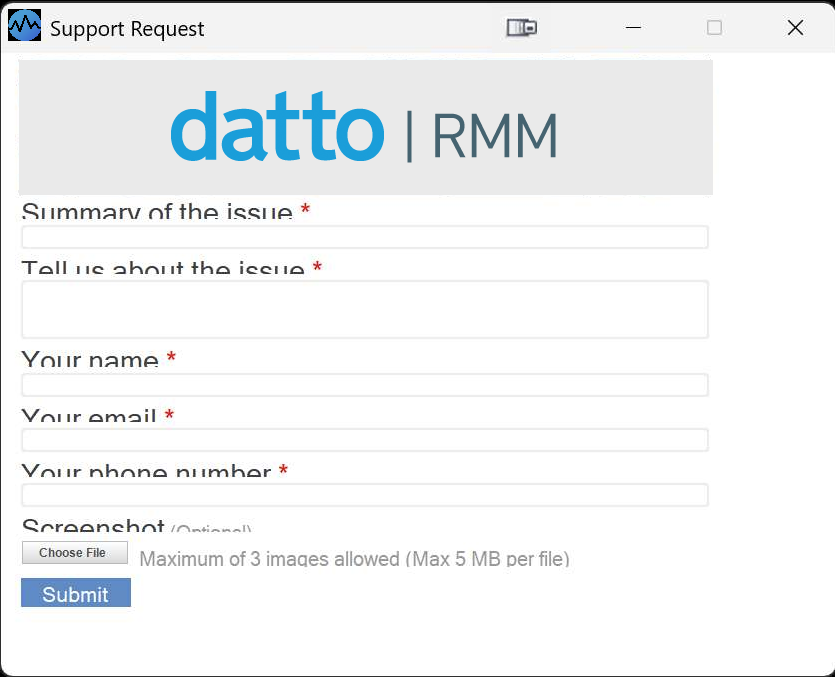
If the Agent Browser or Support Request window appears distorted or incorrectly scaled, such as the example above, adjust the DPI compatibility settings for gui.exe:
- On the affected device, open File Explorer and navigate to
C:\Program Files (x86)\CentraStage. - Right-click gui.exe and click Properties.
- Click the Compatibility tab, then click Change high DPI settings.
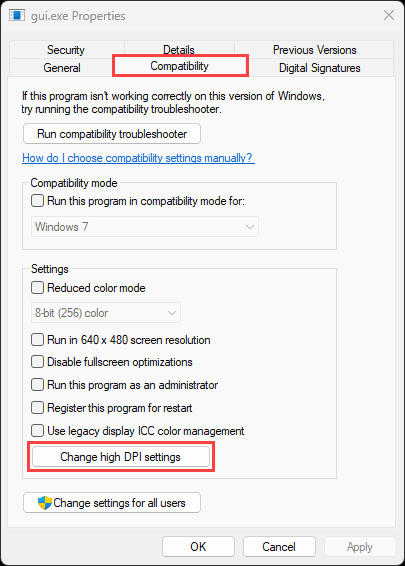
- Select the Use this setting to fix scaling problems for this program instead of the one in Settings check box.
- Under Use the DPI that's set for my main display when, select I open this program from the drop-down menu.
- Under High DPI scaling override, select the Override high DPI scaling behavior. Scaling performed by: check box, then select System from the drop-down menu.
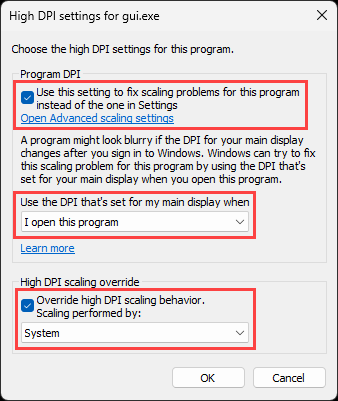
- Click OK to save the settings.
- Sign out of Windows and sign back in.
The Agent Browser and Support Request window should now render correctly.
Step 2: Reset Agent Browser size and position
If the Agent Browser opens to a blank screen or is not visible, corrupted size and position settings are the most likely cause. To reset them:
- Right-click the Datto RMM agent icon in the system tray near the clock.
- Click Settings.
- Click the Advanced tab.
- Click Reset Agent Browser Size and Position.
- Close and relaunch the Agent Browser.
The Agent Browser should now open in a visible, correctly sized window.
NOTE If Settings is grayed out, an active Agent Policy may be restricting access. Contact your administrator to review the policy settings.
Step 3: Move an off-screen window (Windows workaround)
If the Agent Browser still does not appear on screen but is visible on the taskbar, use the following Windows keyboard shortcut to move it back into view:
- Hold Shift and right-click the Agent Browser icon on the taskbar.
- Click Move.
- Press the arrow keys to move the window back onto the screen.
Step 4: Restart the Datto RMM Agent service
- Open Services by running
services.msc. - Locate Datto RMM Agent (also listed as cagservice).
- Right-click the service and click Restart.
Alternatively, open Task Manager, end any gui.exe processes, and then relaunch the Agent Browser.
Step 5: Verify required components and permissions
Confirm that all of the following conditions are met on both the initiating and target devices:
- The latest Datto RMM Agent is installed and running.
- Microsoft .NET 6.0 Desktop Runtime and Visual C++ Redistributables are installed.
- No firewall, Domain Name System (DNS) filtering, or endpoint security tool is blocking agent communication or its executables.
- Your user account has the correct security level and Agent Browser access is not disabled by policy.
Step 6: Run the Agent Health Check tool
- In the Datto RMM ComStore, locate and deploy the Agent Health Direct-Check [WIN] component. Alternatively, download the health check tool from your Datto portal.
- Review the output for missing dependencies or connectivity issues, and resolve any flagged items.
NOTE If the issue persists after resolving the flagged items, collect logs following the steps for the device's operating system in Agent log files, and contact Kaseya Support for further troubleshooting.
Tips and tricks
To prevent Agent Browser display issues from recurring, keep the following in mind:
- After any display configuration change — such as adding, removing, or rearranging monitors, or adjusting Windows display scaling — reset the Agent Browser size and position as described in Step 2 before relaunching.
- Avoid double-clicking the Agent Browser button, particularly in virtual desktop environments, as this can cause session conflicts.
- The Agent Browser has known limitations in multi-user and virtual desktop scenarios. If you consistently experience issues in these environments, contact your administrator.


