Diagnosing incorrect Antivirus Status on devices
Datto RMM displays an Antivirus Status that does not match the actual antivirus state of a device. This article explains how to identify where Datto RMM gets the status and how to correct it.
Problem statement
The Antivirus Status for a device in Datto RMM is incorrect. For example, the device shows that antivirus is not running or is out of date when it is running and current, or the reverse. Antivirus Status is a monitor, and the Datto RMM Agent reports it from one of three detection sources: native detection, Windows Security Center, or an override file.
Resolution
To resolve this issue, complete the following steps:
Confirm Antivirus Status is updating
- In Datto RMM, navigate to the device and open the Monitors section.
- Locate the Antivirus Status monitor and check for recent Last Reading values.
- If the values are not recent, troubleshoot AEMAgent before continuing, because the agent isn't reporting the monitor correctly.
Determine the detection source
- On the device, open the
AEMAgent.logfile. You can use Agent Browser to view the file remotely. - Search the log for
avSource. The entry looks similar to the following example:12.9.0.1367|2024-04-22T01:16:35.348-04|INFO|POLL|{ "logcontext": "Monitoring.Program", "membername": "handler", "httpStatusCode": 200, "definitionName": "AntiVirus", "monitorId": "BUILT-IN", "json": "{\"avProduct\":\"Endpoint Security\",\"avUpToDate\":true,\"avRunning\":true,\"avSource\":\"Defined\"}" } - Match the
avSourcevalue to the detection source in the following table, and then complete the steps in the corresponding section.avSource value Detection source Go to DefinedNative detection Native detection (Defined) Security CenterWindows Security Center Security Center OverrideOverride file Override file
After determining the source, expand the relevant section below to continue troubleshooting.
NOTE Always check the avSource value in AEMAgent.log first. Identifying the detection source up front prevents you from troubleshooting the wrong source.
 Native detection (Defined)
Follow the steps below if you have determined that the source of your incorrect AV status source is native detection
- Review the native detection criteria for the antivirus product. Refer to Antivirus products.
- Confirm that the remote device is using a supported antivirus, and meets all additional criteria noted, in the link from the previous step.
- If the device doesn't meet the criteria, correct the condition on the device so the antivirus product is detected correctly.
Security Center
Follow the steps below if you have determined that the source of your incorrect AV status source is the Windows Security Center.
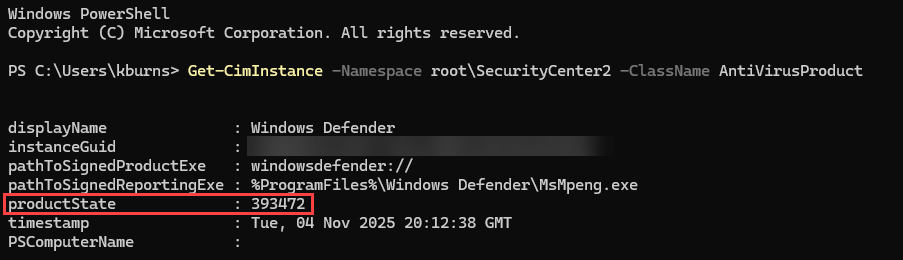
- On the affected device, open PowerShell and Run the following command to show what Windows Security Center reports for the device:
Get-CimInstance -Namespace root\SecurityCenter2 -ClassName AntiVirusProduct
EXAMPLE In this example, the command returned a result for Windows Defender where the productState field displays code 393472, which means that Windows Defender installed and up to date, but it's disabled. For a list of common values for the productState field, refer to Common productState values.
- Compare the command output with the status shown in Datto RMM.
- If Windows Security Center reports an incorrect status, run the Clear Antivirus Entries from WMI [WIN] component on the device.
NOTE Running the Clear Antivirus Entries from WMI [WIN] component only corrects issues in the Windows Security Center and has no effect incorrect status based on native detection or an override file
Common productState values
| Decimal (productState value) | Hexadecimal | Product Owner | Real-Time Protection | Definition Status |
|---|---|---|---|---|
| 262144 | 0x040000 | Third party antivirus | Disabled | Up to date |
| 262160 | 0x040010 | Third party antivirus | Disabled | Out of date |
| 266240 | 0x041000 | Third party antivirus | Enabled | Up to date |
| 266241 | 0x041001 | Third party antivirus | Enabled | Out of date |
| 393472 | 0x060100 | Microsoft / Windows Defender | Disabled | Up to date |
| 393488 | 0x060110 | Microsoft / Windows Defender | Disabled | Out of date |
| 397568 | 0x060000 | Microsoft / Windows Defender | Enabled | Up to date |
| 397584 | 0x061110 | Microsoft / Windows Defender | Enabled | Out of date |
Override file
In the case of macOS and Linux devices, or when the antivirus product is not natively detected, an override file can be created to force an antivirus status in Datto RMM. Refer to Antivirus status override file.
Follow the steps below if you have determined that the source of your incorrect AV status source is an override file on the device.
- On the device, check whether an antivirus status override file exists. Refer to Antivirus status override file to determine the file location, based on the Operating System (OS).
- Identify how the file is placed and updated. While this file could have been placed manually, more often it is the result of either a job run against the device, or a monitor with a component response that creates or updates the file.
NOTE Most of the third-party AV/security integration components (such as Bitdefender GravityZone & Threatdown) will actively control & update the
antivirus.JSONoverride file within their own scripts. - After identifying the source of the override file, remove the file if it is not needed, manually update the file if needed, and repair any automations that are writing to the override file.
NOTE If manually updating the file to temporarily resolve, just note that the Datto RMM agent is designed to auto-delete the
antivirus.JSONfile if becomes 7 days old (without being modified/replaced) as it assumed to be stale data and in turn would allow the agent's Native Detection (or Security Center) to attempt to take over.


