How do I log in as a LocalSystem user to test scripts?
To verify that custom scripts can run outside the Datto RMM environment, you must run them as a LocalSystem user. Running scripts as a regular user will not give accurate results.
- Save the component script you want to test locally to the device you want to run the test on. You can copy a component's script in the create/edit component screen. Refer to Script.
- Download PsTools from Microsoft using this link.
- Extract the downloaded PSTools.zip file.
- Go to Run and type
cmdto open a command window. Open the first command prompt using the Run As option, and choose Run as administrator.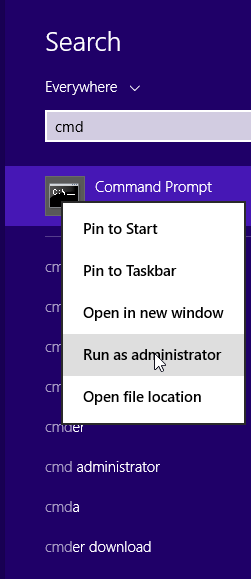
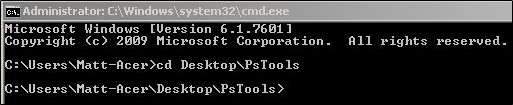
- Navigate to the directory where you downloaded PsExec:
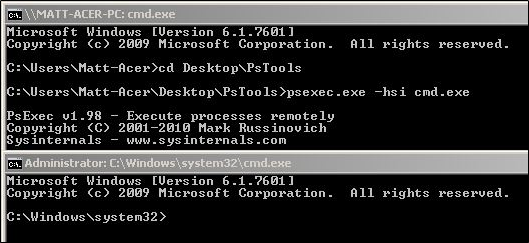
- Run the PsExec tool to invoke a new command prompt as the LocalSystem user. Commands typed in this window will be on the LocalSystem user level.
- In the new command window, type whoami to verify you are running as the LocalSystem user. You can now use the new command window to execute your downloaded component script and test it.
EXAMPLE If you're testing a powershell script called Test.ps1, you could use
powershell -File C:\Users\<username>\Desktop\Test.ps1.
EXAMPLE If you extracted the file to your desktop, you could use cd C:\Users\<username>\Desktop\PsTools.
psexec.exe -hsi cmd.exe
NOTE PsExec can sometimes be flagged by anti-virus as malicious, even though it is not harmful on it's own. To reduce false positives, it is recommended that you remove it from your device after testing has finished.


