Best practices for patching Linux devices
 Security and navigation
PERMISSIONS Refer to Jobs > Active Jobs in Permissions.
Creating a job
NAVIGATION Automation > Jobs > Create Job
NAVIGATION Job results page > select one or more devices (check boxes) > Create a Job. To view the various navigation paths you can use to access the job results page, refer to Job results.
NAVIGATION Automation > Components > hover over the Edit drop-down menu for a component > Create a Job
NAVIGATION Sites > All Sites > click the name of a site > select one or more devices (check boxes) > Create a Job
NAVIGATION Devices > All > select one or more devices (check boxes) > Create a Job
NAVIGATION Device summary page > click the More icon > Create a Job. To learn how to access the device summary page, refer to Device summary.
NAVIGATION A targeted list of devices > select one or more devices (check boxes) > Create a Job. To view the navigation paths for the various targeted lists of devices, refer to Targeted lists of devices in Devices.
NAVIGATION List of alerts > select one or more alerts (check boxes) > Create a Job. To view the navigation paths for the various lists of alerts, refer to Alerts.
Editing a job
NAVIGATION Automation > Jobs > Edit Job (Action column in table)
NAVIGATION Automation > Jobs > click the name of a job > Edit Job
Overview
Installing patches is a fundamental part of any IT security strategy, so the same attention must be paid to Linux as we do to Windows and macOS. Using Datto RMM, we can audit for and install missing Linux patches as part of an overall security strategy.
Prerequisites
To patch Linux devices you will need to download the Linux Updates [LIN] component. For information on how to download components, refer to Download a component.
For a list of supported Linux distributions, refer to Supported operating systems and Agent requirements.
Patch Process
Linux devices often run server workloads so we need to plan the patch process, to do this we have split the update process in the component into three separate stages, each selectable via the drop-down for the usrAction variable in the Linux Updates [LIN] component.
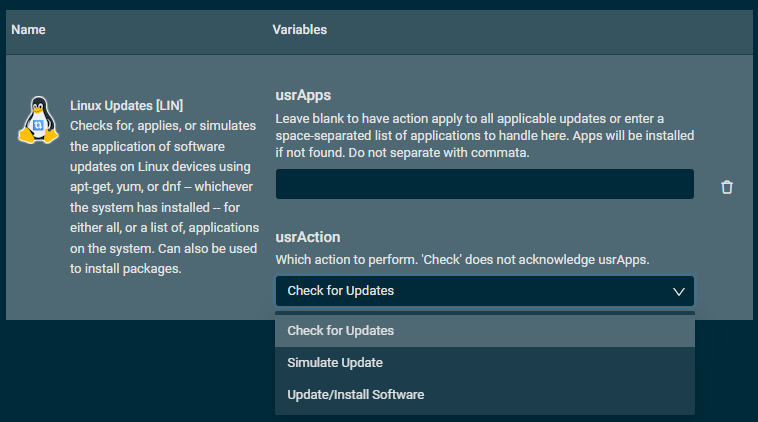
- Check for Updates: List available updates for the installed distribution and packages.
- Simulate Update: Test the installation of updates, verify the targeted devices can connect to all the download locations, and check available disk space, among other actions. Then, update process will run while excluding the actual install phase to verify if the update installation will be successful.
- Update/Install Software: Perform the installation of updates.
NOTE The component will automatically select the best command (apt-get, yum or dnf) to complete the update process based on the Linux distribution of the targeted device.
Staging the update process
When patching Linux devices we generally see partners split a month up into four weekly blocks, something like this…
- Week one: Check for available updates by running the Linux Updates [LIN] component against your Linux OS devices using the Check for Updates option for the usrAction variable.
- Week two: Simulate the update process by running the Linux Updates [LIN] component against your Linux OS devices using the Simulate Update option for the usrAction variable.
- Week three: No action taken (typically to allow for any change processes that need to be followed).
- Week four: Install the available updates by running the Linux Updates [LIN] component against your Linux OS devices using the Update/Install Software option for the usrAction variable.
Viewing the output after checking for updates
After running the Linux Updates [LIN] component against your Linux OS devices using the Check for Updates option for the usrAction variable, you will want to view the StdOut of the job, which can be viewed per device in the job results via Automation > Jobs > select a job. An example of the job output is shown below.
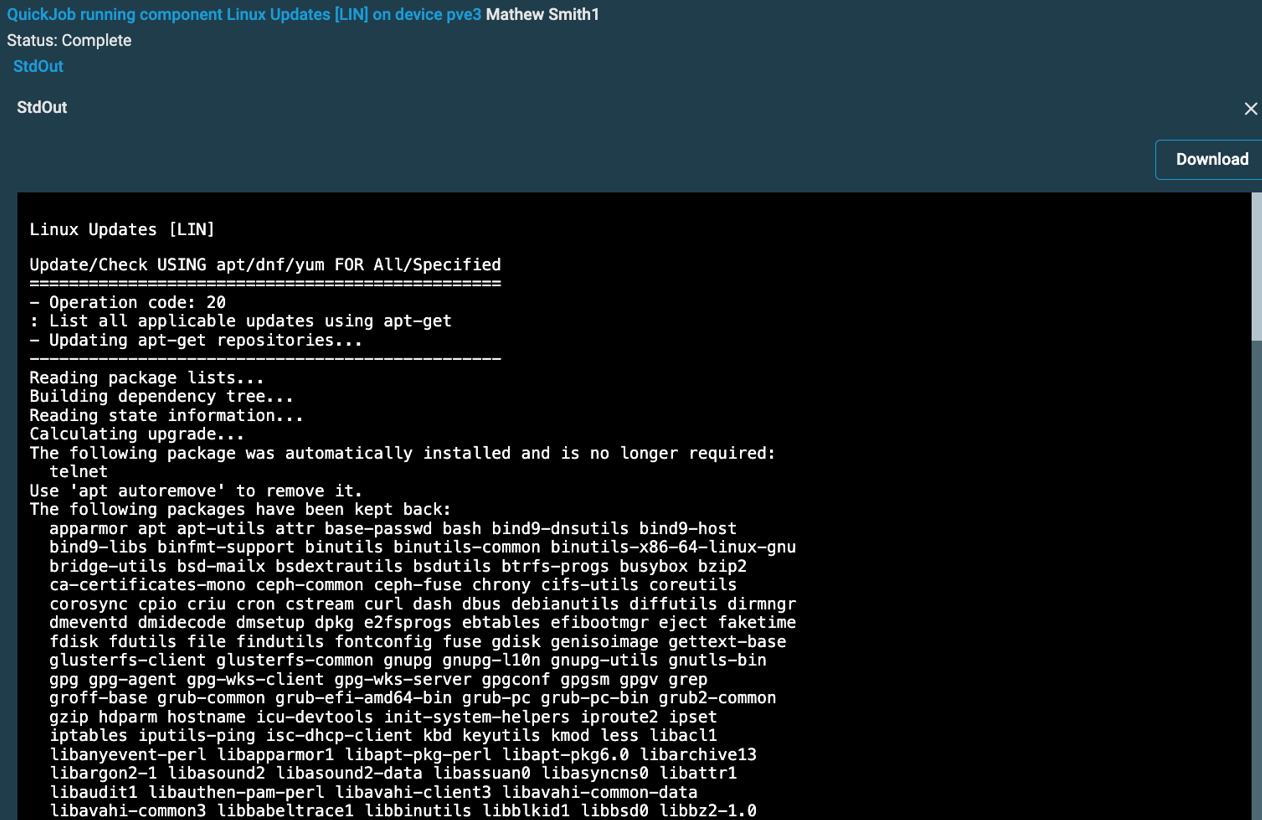
At the bottom of the StdOut the available updates are summarized.

Scheduling Linux patching
It is unlikely you will want to update all the Linux devices at the same time, rather you will probably split your devices into update groups or rings. A user-defined field combined with some custom filters can help you easily split your devices into different patching groups.
In the example below we have allocated a patch group number 1-4 in a custom field we have named “Patch Group”.
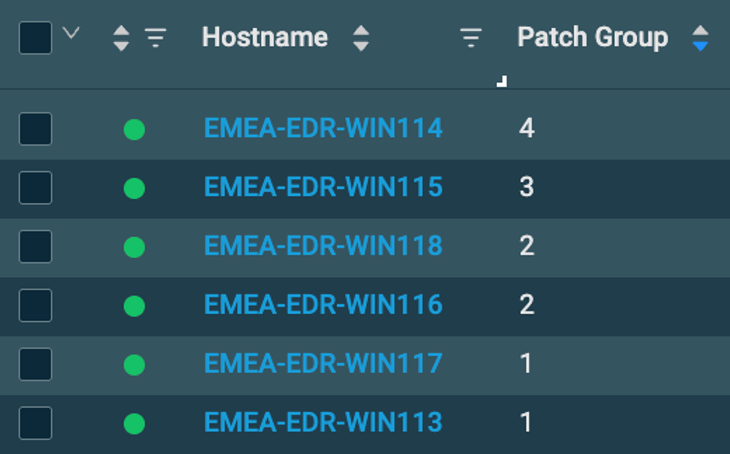
Once this field has been defined on your Linux devices, you can create a custom filter for each patch group, like the example below:

You would then create a new filter for each patch group, and schedule jobs at different times with different targets to stage your patch rollout.


