Apple MDM in Datto RMM
 Security and navigation
PERMISSIONS Refer to Setup > Integrations in Permissions.
PERMISSIONS Refer to Global > Policies in Permissions.
PERMISSIONS Refer to Sites > Policies in Permissions.
PERMISSIONS Refer to Sites > Devices in Permissions.
NAVIGATION Setup > Integrations > Apple MDM
Overview
Apple MDM brings managed Apple devices into the same Datto RMM Sites, Devices, filters, groups, and policy workflows used to manage other endpoints. After connecting Datto RMM to Apple services, you can enroll devices, view their inventory and enrollment status, apply Apple MDM policies and payloads, deploy managed applications, and run supported remote commands.
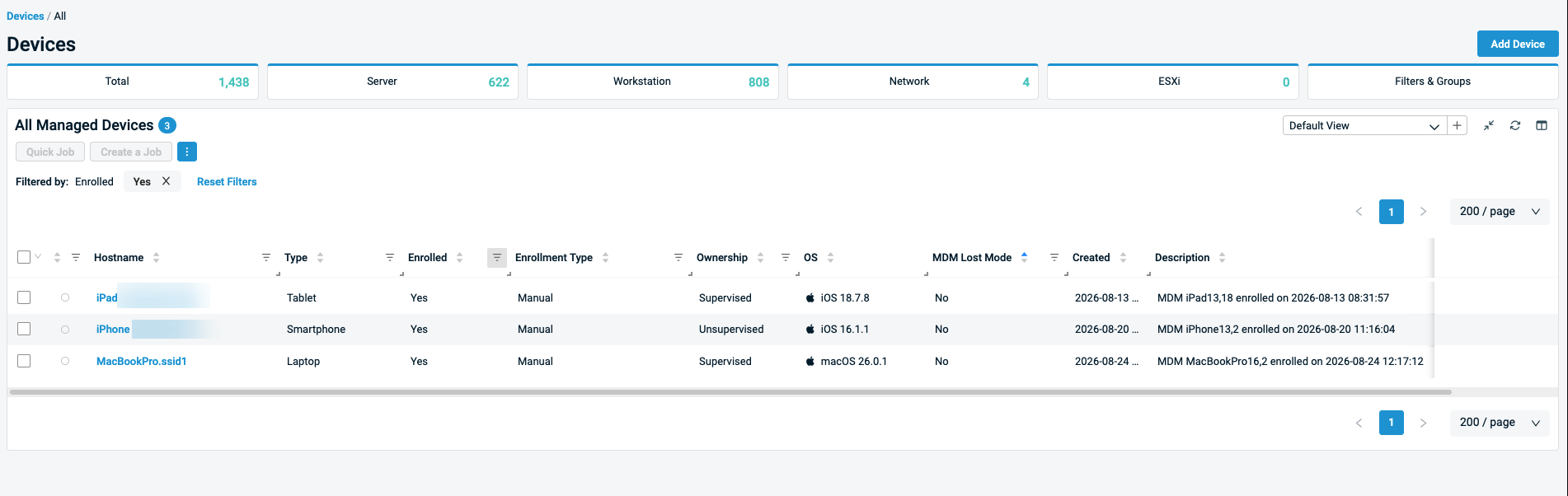
Setting up Apple MDM has three main stages:
- Connect Apple services. An Apple Push Notification service (APNs) certificate is required. Automated Device Enrollment (ADE) and Apps and Books are configured when those workflows are needed.
- Enroll devices. Enroll individual devices using a QR code and enrollment link, or USB with Apple Configurator, or use Automated Device Enrollment for organization-owned devices.
- Apply policies. Use Datto RMM filters and groups to target Apple MDM policies, then review enrollment, policy, and command status from the device record and Activity Log.
IMPORTANT Apple MDM is currently available in restricted access. Reach out to your Account Manager for information on enrolling in Apple MDM for Datto RMM.
Supported enrollment methods
Datto RMM supports multiple enrollment methods for Apple devices.
| Platform | Manual: QR code or enrollment link | USB with Apple Configurator | Automated Device Enrollment (ADE) |
|---|---|---|---|
| iOS | Supported | Supported | Supported |
| iPadOS | Supported | Supported | Supported |
| macOS | Supported | Not applicable | Supported |
NOTE Apple TV is not currently supported.
Feature availability
Feature availability varies by device platform, operating-system version, enrollment method, supervision status, license entitlement, and optional application dependencies.
NOTE When a Mac is enrolled through Apple MDM, Datto RMM also installs the macOS agent. This combines Apple MDM controls with supported agent-based Datto RMM capabilities, such as Web Remote.
Management capability matrix
| Capability | iPhone | iPad | Mac |
|---|---|---|---|
| Apple MDM policies | Supported | Supported | Supported |
| MDM commands | Supported commands | Supported commands | Supported commands |
| Managed applications / Apps and Books | Supported | Supported | Supported |
| Datto RMM agent capabilities | Not applicable | Not applicable | Supported |
| Standard Datto RMM Sites / Devices / targeting | Supported | Supported | Supported |
Unified Apple device management
Manage Apple devices using the standard Datto RMM device-management model:
- View Apple devices in the standard Devices view.
- Associate devices with Datto RMM Sites.
- Use device properties to identify MDM enrollment and supervision state.
- Review MDM activity from the device and Activity Log.
- Manage Macs through both Apple MDM and the Datto RMM agent.
Apple MDM policy management
Use policies to configure supported Apple device settings. Refer to Configure Apple MDM policies.
MDM commands
Run supported Apple MDM commands directly from the Datto RMM device card. Refer to Run Apple MDM commands.
Managed application deployment
Use Apps and Books to synchronize application and license information from Apple Business or Apple School Manager and make managed applications available for assignment to enrolled Apple devices. Refer to Create an Apps and Books token.
Licensing
Apple MDM uses separate licensing for macOS and iOS/iPadOS devices. Macs enrolled through Apple MDM continue to use a standard Datto RMM Endpoint License.
iOS and iPadOS devices require a dedicated Mobile Device Management License.
License consumption
| Device or state | Datto RMM license consumed |
|---|---|
| Enrolled iPhone | 1 Mobile Device License |
| Enrolled iPad | 1 Mobile Device License |
| Unenrolled iPhone or iPad | No license consumed |
| Enrolled Mac | 1 Datto RMM Endpoint License |
| Unenrolled Mac | 1 Datto RMM Endpoint License |
| Discovered but not enrolled ADE device | No license consumed |
NOTE Devices discovered through Automated Device Enrollment (ADE) do not consume a license until they are activated, configuration is finished, and their enrollment status changes to Enrolled.
Trialing Apple MDM
Eligible Datto RMM accounts can start a free 14-day Mobile Device Management trial to evaluate Apple device management in their own environment.
During the trial, you can connect Datto RMM to Apple services, enroll supported Apple devices, apply Apple MDM policies and payloads, deploy managed applications, and run supported MDM commands. Apple devices are managed through the same Datto RMM Sites, Devices, filters, groups, policies, and activity workflows used for other endpoints.
Starting a trial
- In Datto RMM, navigate to Setup > Licenses.
- Click Start trial.
- Confirm that the card status changes to Trial active.
- Set up the required Apple MDM integrations.
- Enroll Apple devices and begin evaluating the available capabilities.
Ending a trial
When the 14-day trial expires, trial access ends automatically. No paid subscription is created, and no automatic charge is applied.
The Mobile Device Management card displays the trial expiration date and, when applicable, the date when another trial becomes available.
To continue using MDM, contact your Account Manager to purchase the required Mobile Device Licenses. Macs will continue to use standard Datto RMM Endpoint Licenses under existing licensing terms.
License quantity and overage
Mobile Device Licenses are subject to the committed quantity in your subscription. When enrolled iPhone and iPad use exceeds the committed quantity, additional use may be billed as overage according to your subscription terms.
Unlicensed mobile devices
When a device is unlicensed, the device remains visible in Datto RMM, but MDM commands are no longer available, MDM policies are no longer applied or updated, and online status is no longer reported.
Unenrollment and license use
When a device is unenrolled, the device remains visible in Datto RMM and enrollment status changes to Unenrolled. MDM commands are no longer available, MDM policies are no longer applied or updated, and online status is no longer reported for iOS and iPadOS devices. For iPhone and iPad, the Mobile Device License is not consumed. For macOS devices, the Datto RMM Endpoint License remains consumed.
Deletion
When an MDM device is deleted, its license is no longer consumed.
Before you start
Before configuring Apple MDM, confirm that you can access the Apple services needed for your workflow, that your Datto RMM user has the required permissions, and that the required integrations are configured for the Sites you plan to manage.
Requirements vary depending on whether you are enrolling devices manually, using Automated Device Enrollment, deploying managed applications, creating policies, or running MDM commands.
Apple account requirements
Use organization-controlled Apple Accounts for Apple MDM configuration. The required account access and permissions depend on the integration.
- APNs: Access to the Apple Push Certificates Portal.
- Automated Device Enrollment: Access to Apple Business or Apple School Manager with a role permitted to manage MDM server assignments.
- Apps and Books: Access to Apple Business or Apple School Manager with permission to obtain content tokens.
Datto RMM permissions
To configure Apple MDM and manage Apple devices, you need the following permissions:
| Task | Required Datto RMM permission |
|---|---|
| Configure Apple MDM integration | Security Level > Permissions > Setup > Integrations = Manage |
| Create an Apple MDM policy | Security Level > Permissions > Sites > Policy = Manage |
| Run an MDM command | Security Level > Permissions > Site > Devices = Manage |
NOTE For information on how to configure user permissions in Datto RMM, refer to Security levels.
Apple MDM prerequisites
Before enrolling or managing Apple devices:
- Verify that the devices meet the supported platform and operating-system requirements. Refer to Supported operating systems and Agent requirements.
- Enable the Apple MDM integration.
- Configure an APNs certificate.
- Make sure the APNs certificate includes every Site where Apple devices will be managed.
- Configure an ADE token when using Automated Device Enrollment.
- Configure an Apps and Books token when deploying managed applications through Apps and Books.
NOTE ADE and Apps and Books are optional. Configure them only when those workflows are required.
Connect Datto RMM to Apple services
Apple MDM uses several Apple services to support device enrollment, management, and application deployment. Configure the integration components required for your Apple device-management workflow.
Integration components overview
| Integration | Purpose | Required for |
|---|---|---|
| APNs certificate |
An Apple Push Notification service (APNs) certificate enables communication between Datto RMM and Apple devices enrolled in Apple MDM. IMPORTANT You must create the APNs certificate before manually enrolling Apple devices or configuring Automated Device Enrollment. |
All Apple MDM enrollment and device-management workflows. Refer to Create an APNs certificate. |
| Automated Device Enrollment (ADE) token |
An Automated Device Enrollment (ADE) token connects Datto RMM to Apple Business or Apple School Manager for automated device enrollment. After the integration is configured and devices are assigned to the corresponding MDM server, eligible Apple devices appear in Datto RMM and can enroll automatically during device setup. IMPORTANT Configure the APNs certificate before creating the ADE token. The APNs certificate must include the Enrollment Site used by the ADE token. |
Automated Device Enrollment. Refer to Create an Automated Device Enrollment token. |
| Apps and Books token |
An Apps and Books token connects an Apps and Books content scope in Apple Business or Apple School Manager to Datto RMM. Datto RMM uses the token to synchronize application and license information so that managed apps can be assigned to enrolled Apple devices. NOTE Creating an Apps and Books token does not enroll devices or install applications. |
Managed application deployment. Refer to Create an Apps and Books token. |
Which components do I need?
| Goal | APNs certificate | ADE token | Apps and Books token |
|---|---|---|---|
| Manually enroll iOS/iPadOS devices | Required | Not required | Not required |
| Manually enroll macOS devices | Required | Not required | Not required |
| Enroll devices automatically with ADE | Required | Required | Not required |
| Deploy managed applications through Apps and Books | Required | Not required | Required |
How to...
Create an APNs certificate
An Apple Push Notification service (APNs) certificate allows Datto RMM to communicate with Apple devices enrolled in Apple MDM. Create the APNs certificate before manually enrolling Apple devices or configuring Automated Device Enrollment.
Prerequisites
Before you begin, verify the following:
- You have permission to manage Apple MDM integrations in Datto RMM.
- You have an organization-controlled Apple account that can sign in to the Apple Push Certificates Portal.
- You know which Datto RMM Sites should be covered by the certificate. The APNs certificate must cover every Site where you plan to enroll or manage Apple devices.
NOTE Use an organization-controlled Apple account when creating the APNs certificate. Record which account was used and ensure that authorized administrators can access it when the certificate needs to be renewed.
Create the certificate in Datto RMM
- Go to Setup > Integrations > Apple MDM > APNs.
- Click Create Certificate.

- In Apple ID, type the email address of the organization-controlled Apple account that will be used to create and renew the APNs certificate.
- In Description, optionally type information that helps identify the certificate.
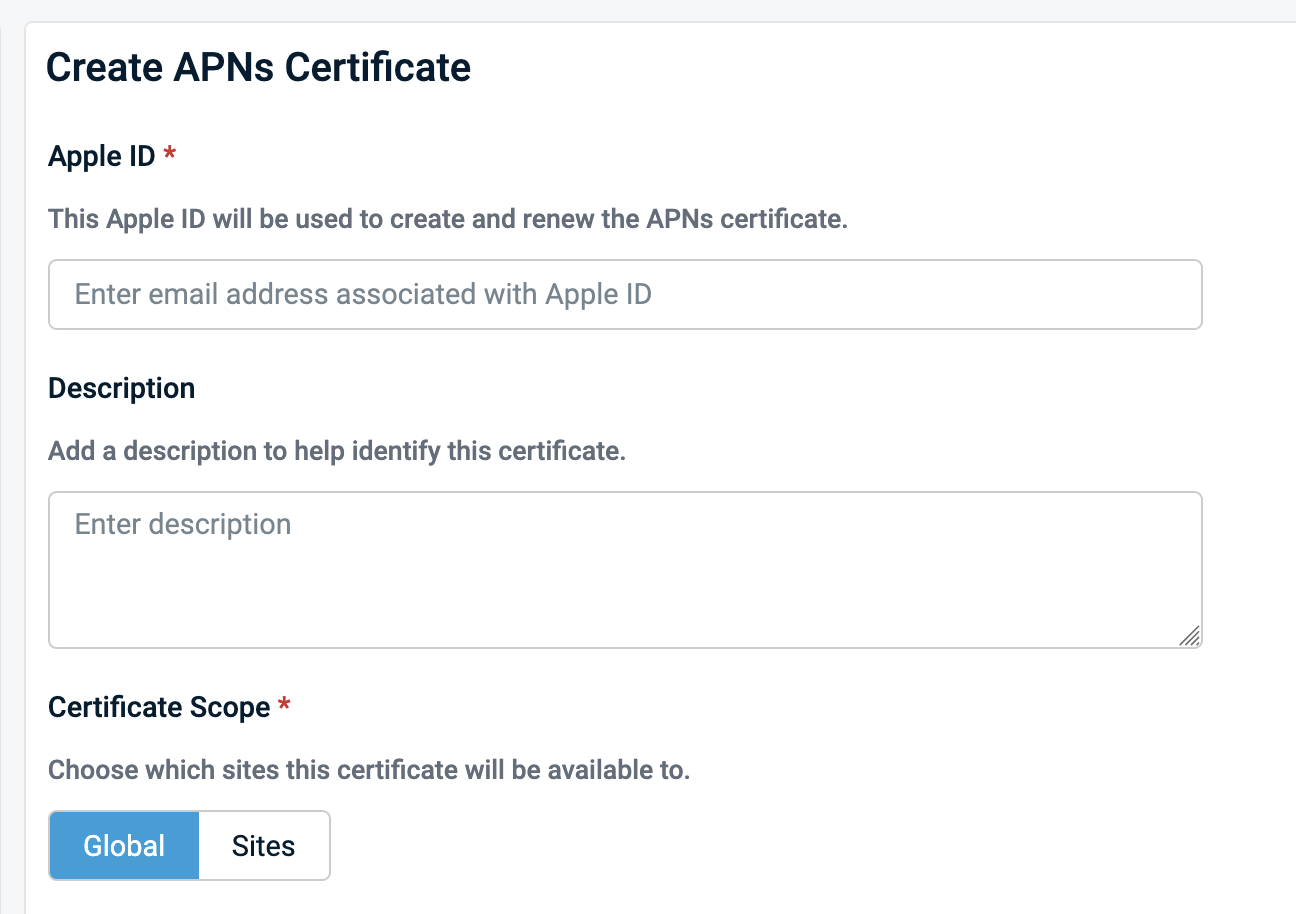
- Select the Certificate Scope of the Sites that will use this APNs certificate:
- Global: Select when the certificate should be available across the Datto RMM account.
- Sites: Select all Sites that should use the certificate.
IMPORTANT The APNs certificate must cover the Site where you plan to enroll or manage Apple devices.
Create the APNs certificate in Apple's portal
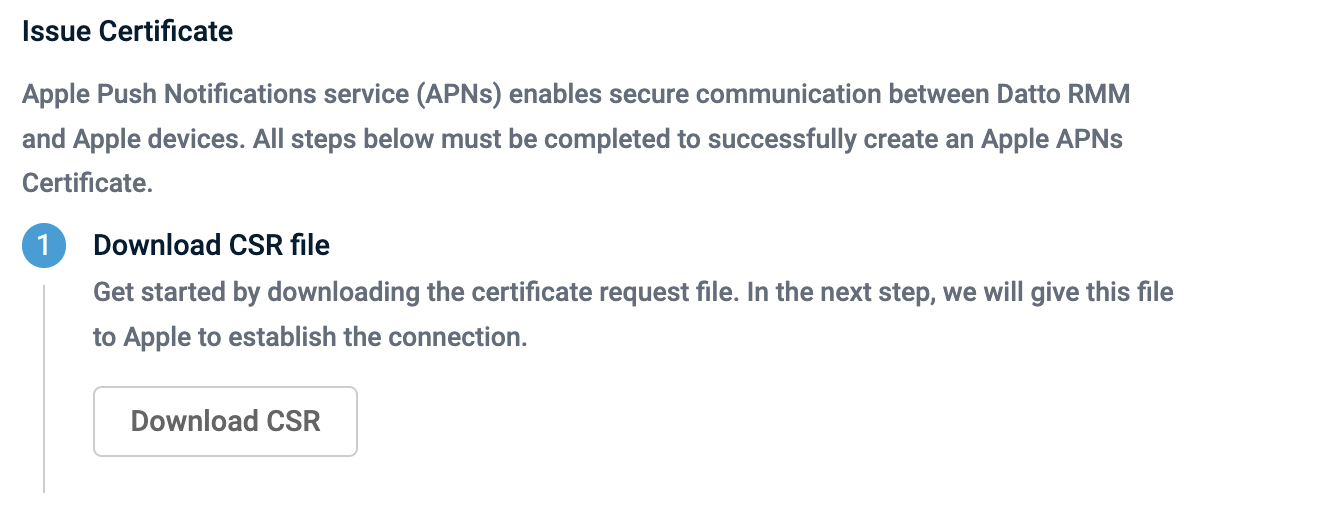
- Click Download CSR to download the Certificate Signing Request (CSR) file required by Apple.
- Sign in to the Apple Push Certificates Portal with the organization-controlled Apple account that will be used to create and renew the APNs certificate.
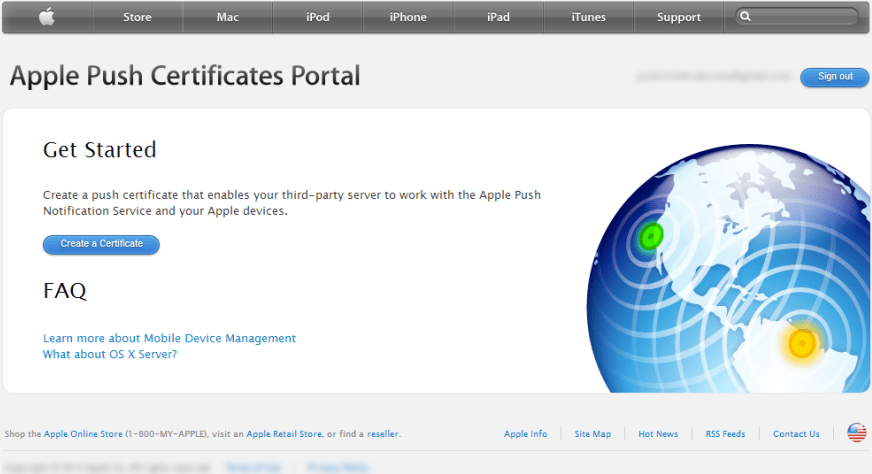
- Click Create a Certificate.
- Accept the MDM Certificate Agreement Terms of Use when prompted.
- Upload the CSR generated by Datto RMM.
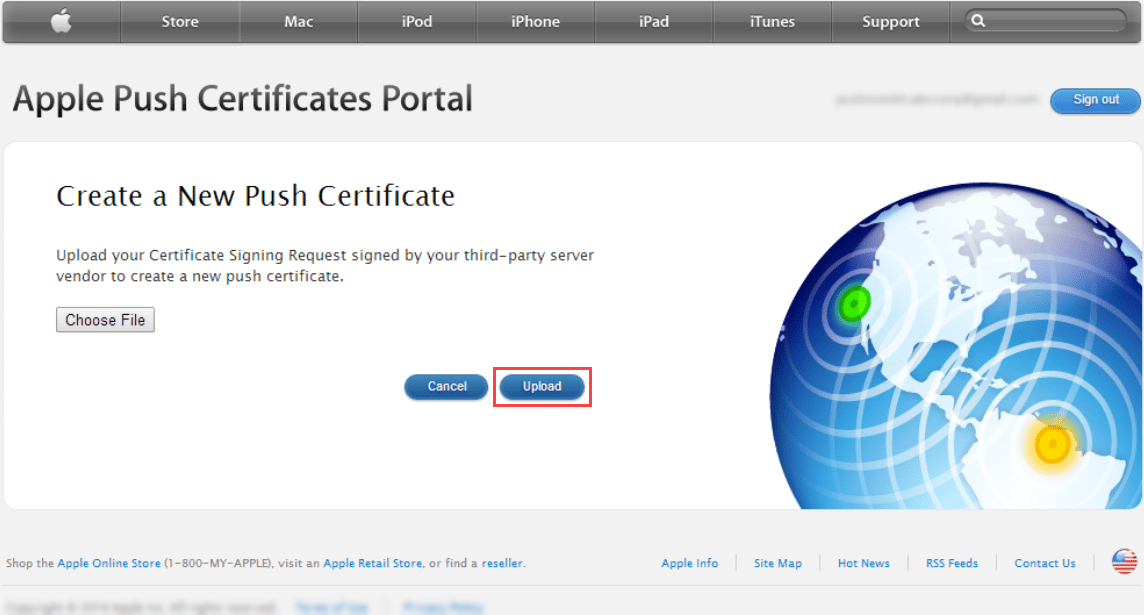
- After Apple confirms that the certificate was created, click Download.
Upload the APNs certificate to Datto RMM
- Return to the Create APNs Certificate page in Datto RMM.
- In Upload the Apple Push Certificate, upload the certificate downloaded from the Apple Push Certificates Portal.
- Verify that the Apple ID matches the account used to create the certificate.
- Click Create.
Verify the certificate
Confirm the following values on the APNs page:

- Apple ID: Identifies the Apple account used to create and maintain the certificate.
- Scope: Shows the expected Datto RMM Sites.
- Status: Shows Active when the certificate is valid.
- Devices: Shows the number of devices using the certificate to communicate with Apple.
- Expiration: Shows the certificate expiration date.
You can now proceed to the applicable enrollment workflow.
Create an Automated Device Enrollment token
Use an Automated Device Enrollment (ADE) token to connect Datto RMM to Apple Business or Apple School Manager. After the token is configured and devices are assigned to the corresponding MDM server, the devices can appear in Datto RMM and enroll automatically during device setup.
Prerequisites
Before you begin, verify the following:
- You have an active APNs certificate in Datto RMM.
- The APNs certificate covers the Datto RMM Enrollment Site you plan to use.
- You have access to an organization-controlled Apple account that will be used to create and maintain the ADE server token.
- You have access to Apple Business or Apple School Manager with permission to manage MDM server assignments.
- The Apple devices you want to enroll are available in Apple Business or Apple School Manager.
- You know which Datto RMM Site should contain the automatically enrolled devices.
Create the token in Datto RMM
- Go to Setup > Integrations > Apple MDM.
- Select the Automated Device Enrollment tab.
- Click Create Token.

- In Apple ID, type the email address of the organization-controlled Managed Apple Account that you will use to download and maintain the ADE token.
- In Description, optionally type information that helps identify the token.
- Select the Enrollment Site where devices will be enrolled.
NOTE When a Site is chosen, a matching or Global certificate is pre-selected.
- Select an APNs certificate.
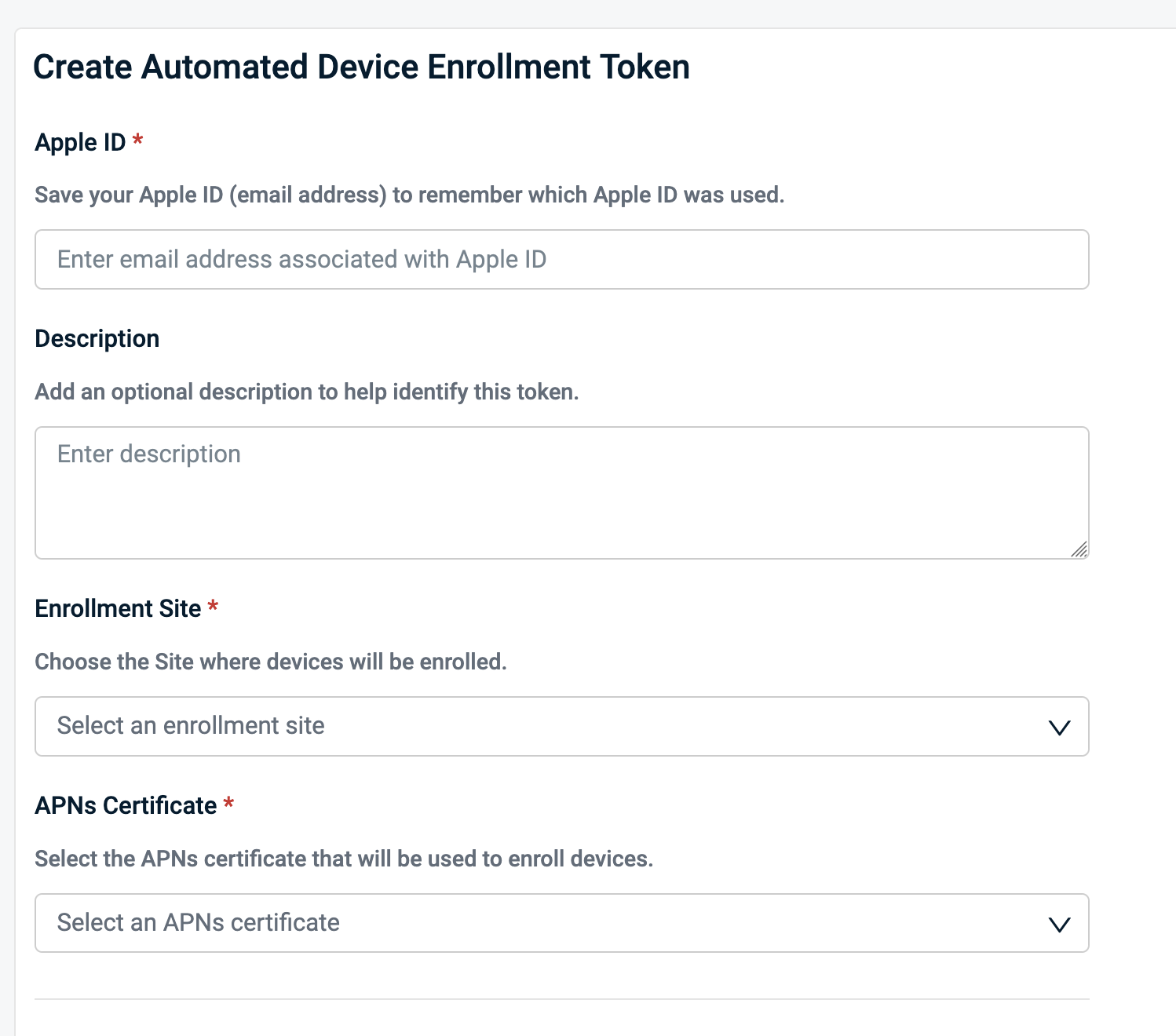
IMPORTANT Make sure you select an APNs certificate that covers the selected Enrollment Site.
Connect to Apple Business
- Click Download Public Key. Datto RMM downloads a Privacy-Enhanced Mail (PEM) file named
ade_public_key_<token id>.pemto your default download location.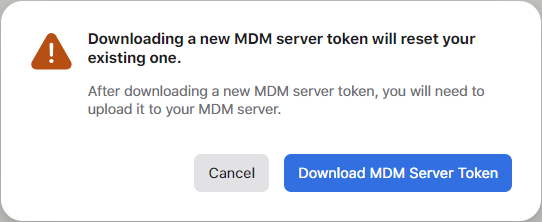
- Click Go to Apple Business or Go to Apple School Manager.
NOTE Keep the Datto RMM page open. You will return to it after downloading the MDM server token from Apple.
Upload the public key to Apple Business
- In Apple Business, click your name at the bottom of the sidebar and select Preferences.
- Click MDM Server Assignment, then click Add.
- Type a unique name for the server.
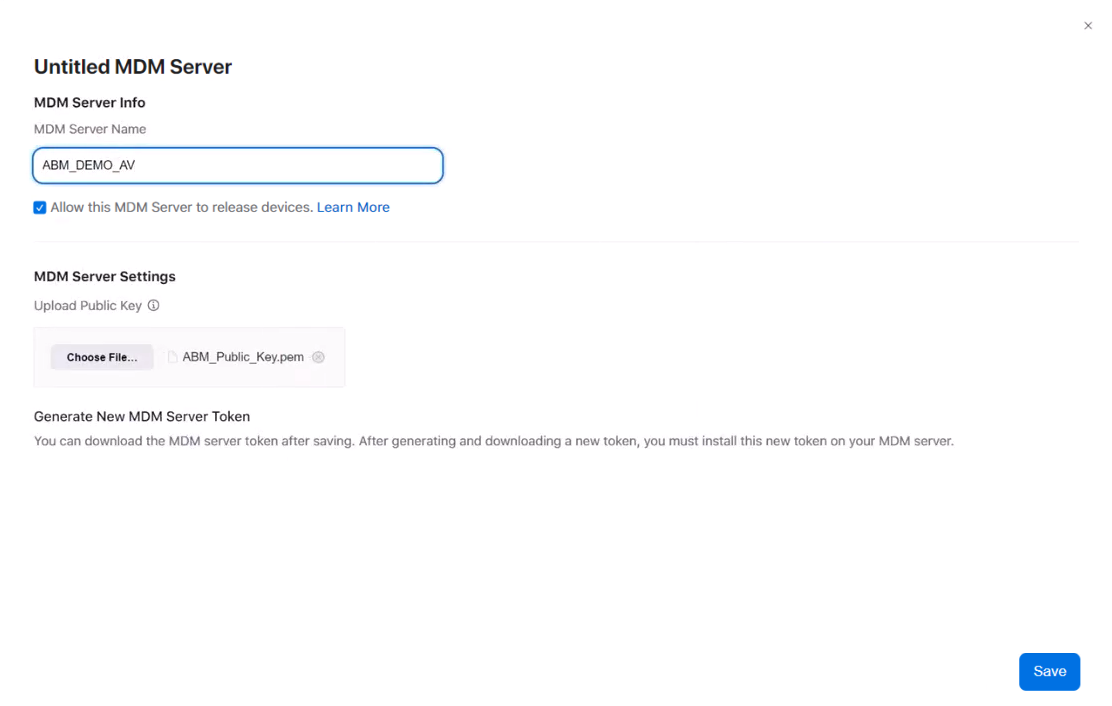
- Upload the
ade_public_key_<token id>.pemfile you downloaded from Datto RMM. - Click Save.
- Click Download MDM Server Token, then click Download MDM Server Token in the confirmation dialog box.
NOTE Apple Business can allow an MDM server to release devices from the organization. Review your organization's device-management requirements before configuring the MDM server's release-device permissions.
Upload the server token
- Return to the Create Automated Device Enrollment Token page in Datto RMM and locate the Upload Server Token section.
- Upload the
.p7mserver token file downloaded from Apple Business by dragging it into the drop file to attach box or by clicking Browse and selecting the file.
Configure enrollment options
- Optionally type a support phone number and email address to display to users during device activation.
- In the General Settings section, configure the following:
- Enforce MDM enrollment: Select whether enrollment is mandatory during device setup.
- Allow users to remove MDM profile: Select this option only when users should be allowed to remove management from the device. For organization-owned devices, leave this cleared unless your organization intentionally allows removal.
- Enable Shared iPad experience: Shared iPad does not support personal Apple Accounts. Users may sign in as guests, and their data is erased after they sign out.
- In Setup Assistance Options, select which setup steps are present when running setup on an MDM-enrolled device.
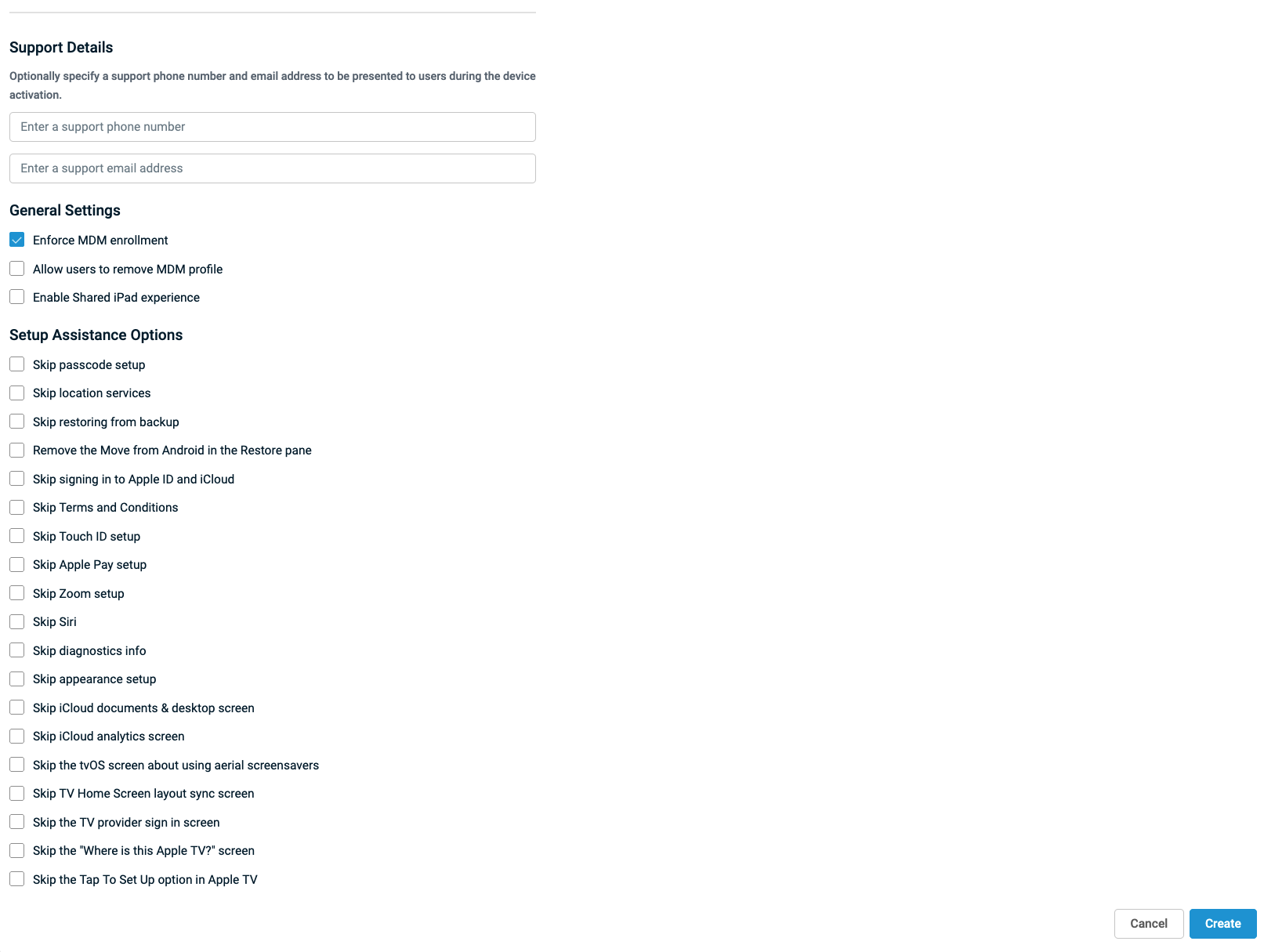
- Click Create to save your configuration and create the token.
Verify the ADE token
Confirm the following values:
- Apple ID: Identifies the Apple account used to create and maintain the token.
- Enrollment Site: Shows the Datto RMM Site where assigned devices will appear.
- Status: Shows Active when the token is valid.
- Expiration: Shows the token expiration date.
- Devices: Shows the number of devices discovered from Apple Business.
Assign devices to the MDM server
In Apple Business or Apple School Manager, assign the Apple devices you want to enroll to the MDM server created for this ADE token. Refer to Assign, reassign, or unassign devices in Apple Business.
Devices assigned to the MDM server appear in the ADE device view before activation on Setup > Integrations > Apple MDM > Automated Device Enrollment > Devices page.
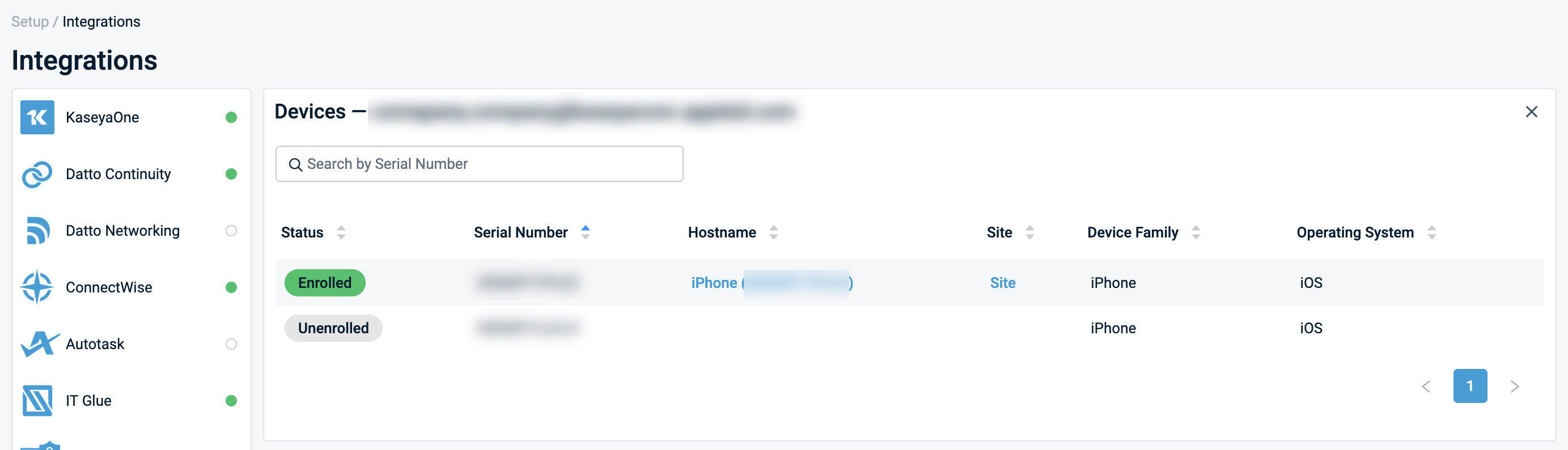
After a device is powered on and completes Setup Assistant, it becomes enrolled and appears in the standard Devices list.
Renew an ADE token
Renew the ADE token before it expires to maintain synchronization between Datto RMM and Apple Business or Apple School Manager.
Use the same Apple account that was used to create the existing token. Refer to Manage content tokens in Apple Business.
Create an Apps and Books token
An Apps and Books token connects an Apps and Books content scope in Apple Business or Apple School Manager to Datto RMM.
The content token represents a specific Apple content scope. Only applications and licenses available in that scope are synchronized to Datto RMM.
Datto RMM uses the token to synchronize available application licenses so that you can assign managed apps to enrolled Apple devices.
After the token is active and application synchronization is complete, configure the applications in an Apple MDM policy and target the required devices.
NOTE Creating an Apps and Books token does not enroll devices or immediately install applications.
NOTE Apple application licenses are separate from Datto RMM device licenses.
Prerequisites
Before you begin, verify the following:
- You have an organization-controlled Managed Apple Account with permission to download Apps and Books content tokens.
- Required application licenses have been acquired or transferred to the appropriate organizational unit in Apple Business or location in Apple School Manager.
- You have permission to manage Apple MDM integrations in Datto RMM.
Create the token in Datto RMM
- Go to Setup > Integrations > Apple MDM.
- Select the Apps and Books tab.
- Click Create Token.

- In Name, type a unique name that identifies the customer and the corresponding Apple organizational unit or location.
-
In the Connect to Apps and Books section, follow the instructions in that section to download a content token from Apple Business or Apple School Manager.
- In Apple ID, type the email address of the organization-controlled Managed Apple Account that you will use to download and maintain the content token. Use the same account when the token needs to be renewed.
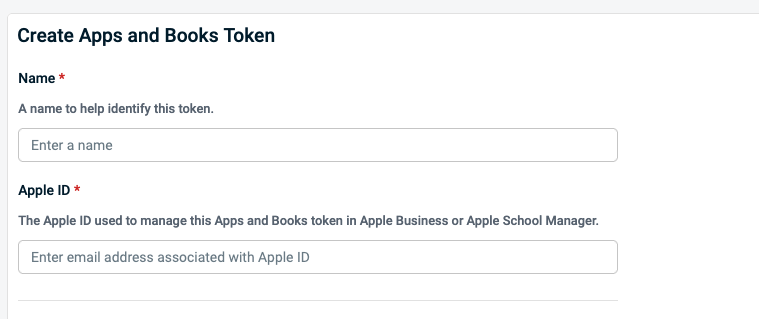
Download the content token from Apple Business
NOTE The following steps describe Apple Business. The corresponding workflow in Apple School Manager is the same, but may have different navigation.
- Sign in to Apple Business with an account whose role has permission to obtain licenses for Apps and Books.
- Go to Settings > Payments & Billing.
- Select Apps and Books.
- Locate the organizational unit whose applications and licenses you want to synchronize with Datto RMM.
- Select Download to download its content token.
Upload the content token to Datto RMM
- Return to the Create Apps and Books Token page in Datto RMM.
- In Upload Content Token, upload the
.vpptokenfile downloaded from Apple Business or Apple School Manager. - Click Create.
Verify the token
Confirm the following values:
- Name: Identifies the correct customer and Apple content scope.
- Apple ID: Identifies the account responsible for maintaining the token.
- Status: Shows Active when the token is valid.
- Expiration: Shows the expected expiration date.
- Apps: Shows the number of applications synchronized from Apple after synchronization completes.
NOTE After the token is active and synchronization is established, configure managed applications in an Apple MDM policy and target the required devices.
Content token renewal
Content tokens are valid for one year. Renew the token before the expiration date shown in Datto RMM to prevent interruption to application-license synchronization and assignment. Refer to Manage content tokens in Apple Business.
Enroll Apple devices
Enrollment is the process of registering an Apple device with a mobile device management (MDM) service so that the device can be managed by Datto RMM. Choose the enrollment method based on the device type, whether the device is personally owned or organization-owned, and the level of management required.
BEFORE YOU BEGIN Configure an APNs certificate before using Apple MDM enrollment. Refer to Create an APNs certificate.
| Enrollment method | Devices | Supervision |
|---|---|---|
| Manual: QR code or enrollment link | iPhone and iPad; enrollment link also supports Mac | iOS or iPadOS devices enroll unsupervised. Mac devices enroll supervised. |
| Manual: USB with Apple Configurator | iPhone and iPad | Supervised |
| Automated Device Enrollment (ADE) | Eligible organization-owned Apple devices | Supervised |
Manually enroll an Apple device using a QR code or link
Use manual enrollment to enroll an Apple device into Datto RMM without Automated Device Enrollment.
- QR code enrollment is intended for personal (BYOD) iPhone and iPad devices.
- Link enrollment is required for Mac computers and can also be used for iPhone and iPad.
BEFORE YOU BEGIN Confirm that an active APNs certificate is associated with the Site where you want to enroll the device.
Start enrollment in Datto RMM
- Go to Devices > Add Device.
- Select Apple MDM.
- Select the Site where the device should be enrolled.
- Select QR Code and Link as the enrollment path.
Use one of the following methods: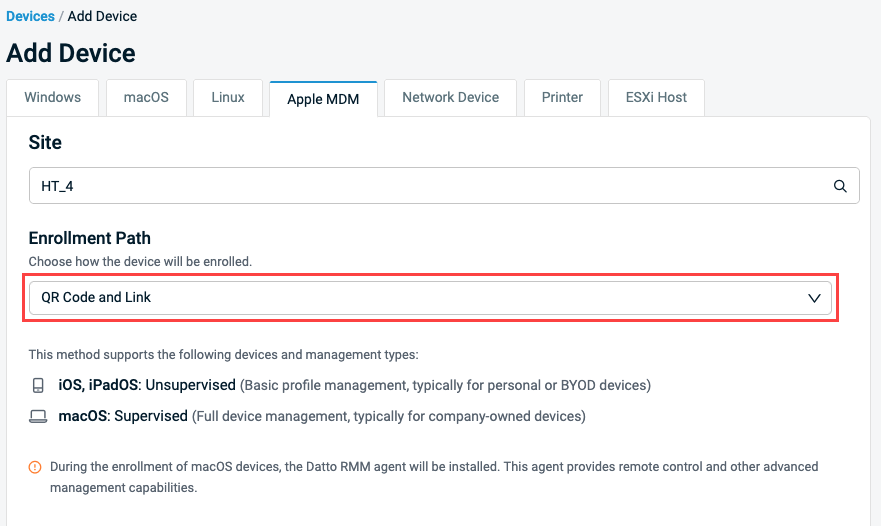
- QR code: Scan the QR code with the device's Camera app.
- Enrollment link: Open the displayed link on the device using Safari browser.
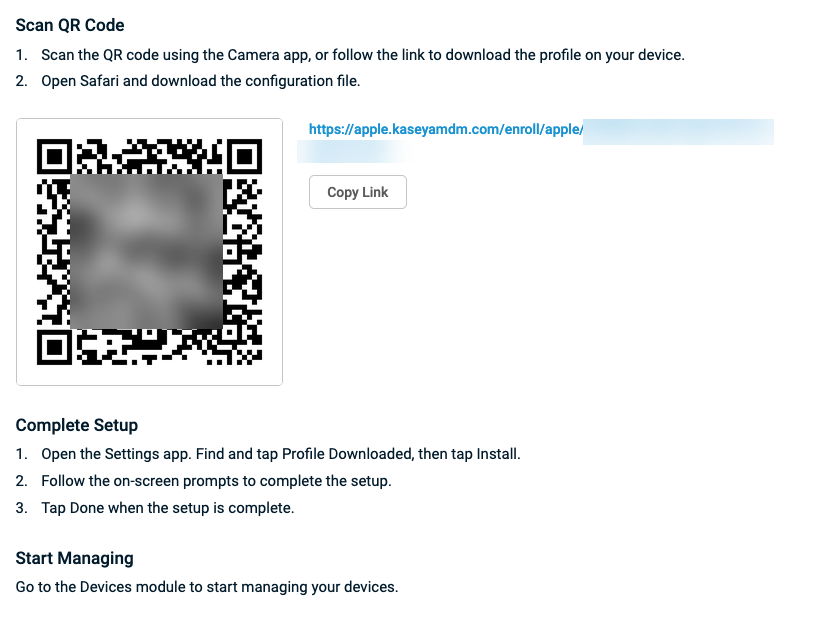
Complete enrollment on the Apple device
On iPhone or iPad:
- Scan the QR code using the Camera app, or open the enrollment link.
- Open the downloaded configuration profile.
- Open Settings.
- Tap Profile Downloaded.
- Tap Install.
- Follow the on-screen prompts to complete enrollment.
- Tap Done.
On a Mac:
- Open the enrollment link provided by Datto RMM.
- Download the configuration profile when prompted.
- Open the downloaded profile.
- Follow the on-screen instructions to install the profile and complete enrollment.
Verify enrollment
- Go to Devices.
- Locate the newly enrolled device in the Site selected during enrollment.
- Open the device card and verify the following:
- MDM Enrolled is Yes.
- The expected Enrollment type is shown.
- The expected supervision status is displayed in Ownership.
You can now manage the device using the supported Apple MDM policies and commands.
NOTE If the device does not appear in Datto RMM, refer to Apple MDM in Datto RMM
Manually enroll an Apple device using USB and Apple Configurator
Use USB enrollment with Apple Configurator to manually enroll supervised iPhone and iPad devices in Datto RMM. This method is intended for organization-owned devices and provides additional management capabilities.
Prerequisites
Before you begin, verify the following:
- An active APNs certificate is associated with the Site where the device will be enrolled.
- You have a Mac computer with Apple Configurator installed.
- You have physical access to the iPhone or iPad.
- The device is organization-owned and eligible for supervision.
NOTE A Mac computer is required to run Apple Configurator, but Mac computers cannot be enrolled using the USB enrollment method.
Start USB enrollment in Datto RMM
- Go to Devices > Add Device.
- Select the Apple MDM tab.
- Select a Site with an associated APNs certificate.
- Select USB as the enrollment path.
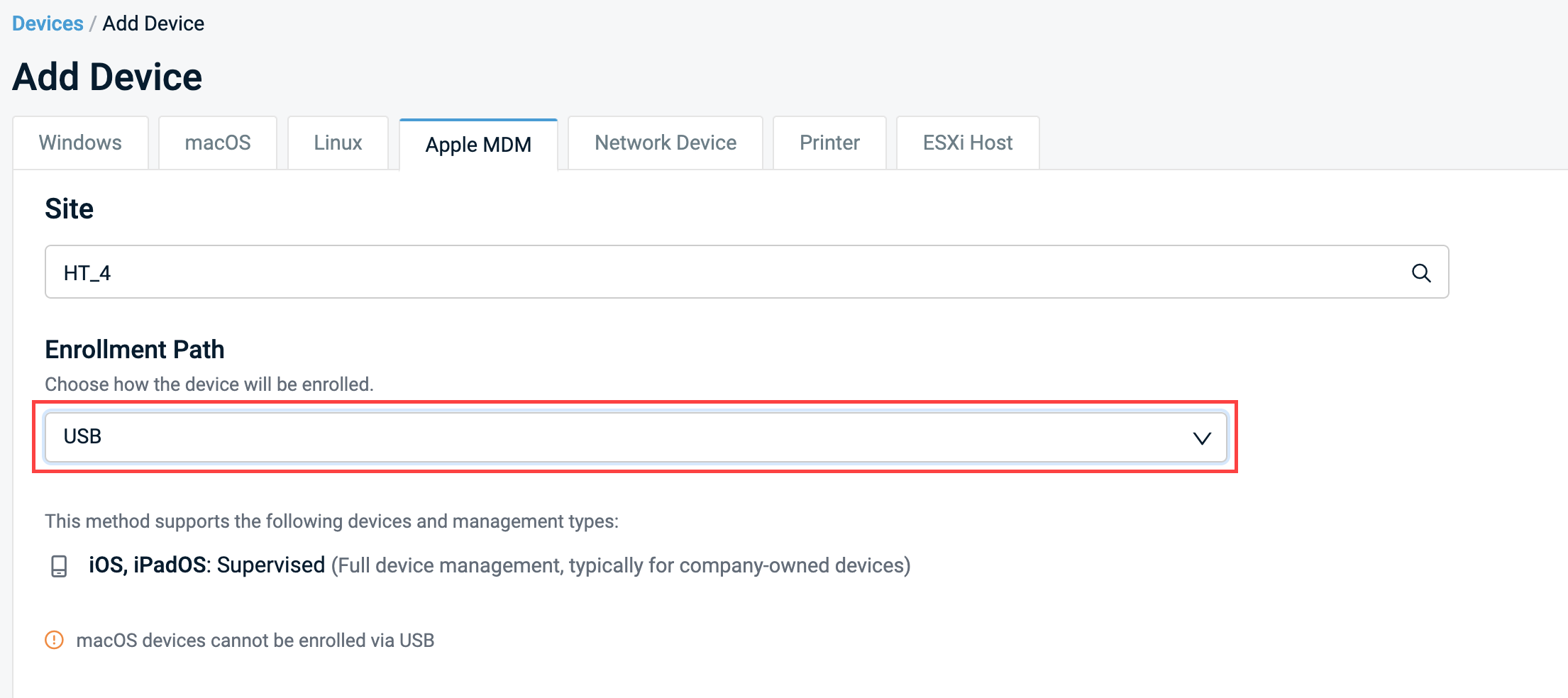
- Download and install Apple Configurator from the Mac App Store on the Mac you will use to prepare the iPhone or iPad.
Create a Wi-Fi profile
- Open Apple Configurator on the Mac device you will use for USB enrollment.
- In Apple Configurator's top navigation menu, click File > New Profile.
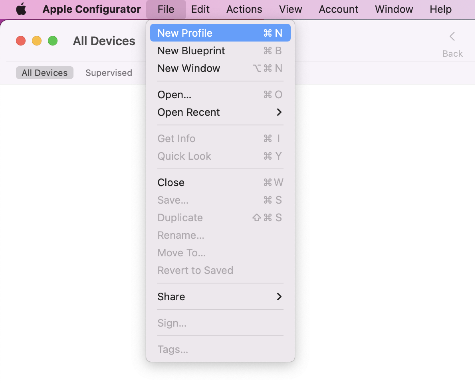
- On the General tab, type a profile name in the Name field.
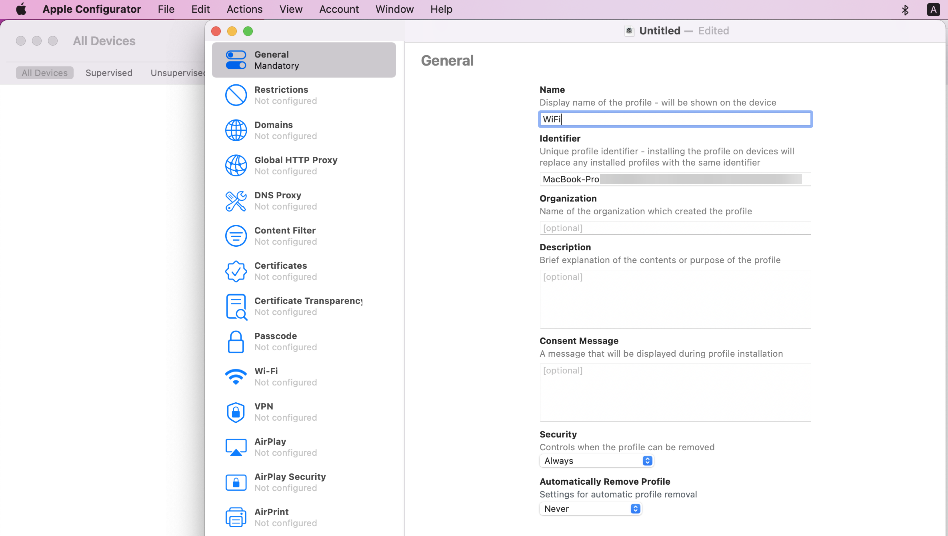
- In the left navigation menu, select Wi-Fi, then click Configure.
- Type the settings of the Wi-Fi network to which the device should connect.
- Click File > Save and save the file in a location you can access in the next steps.
Create a blueprint
- In Apple Configurator, select File > New Blueprint.
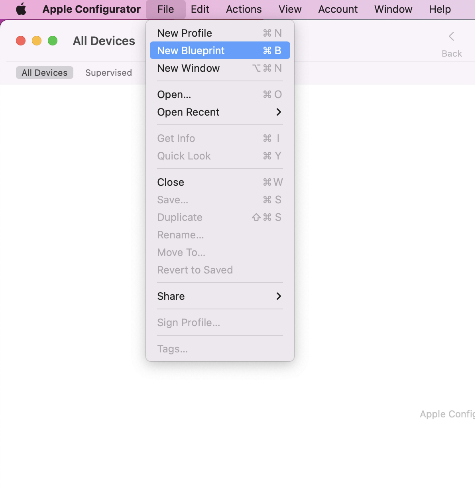
- Type a name for the blueprint.
- Select the blueprint you created, then click Add > Profiles.
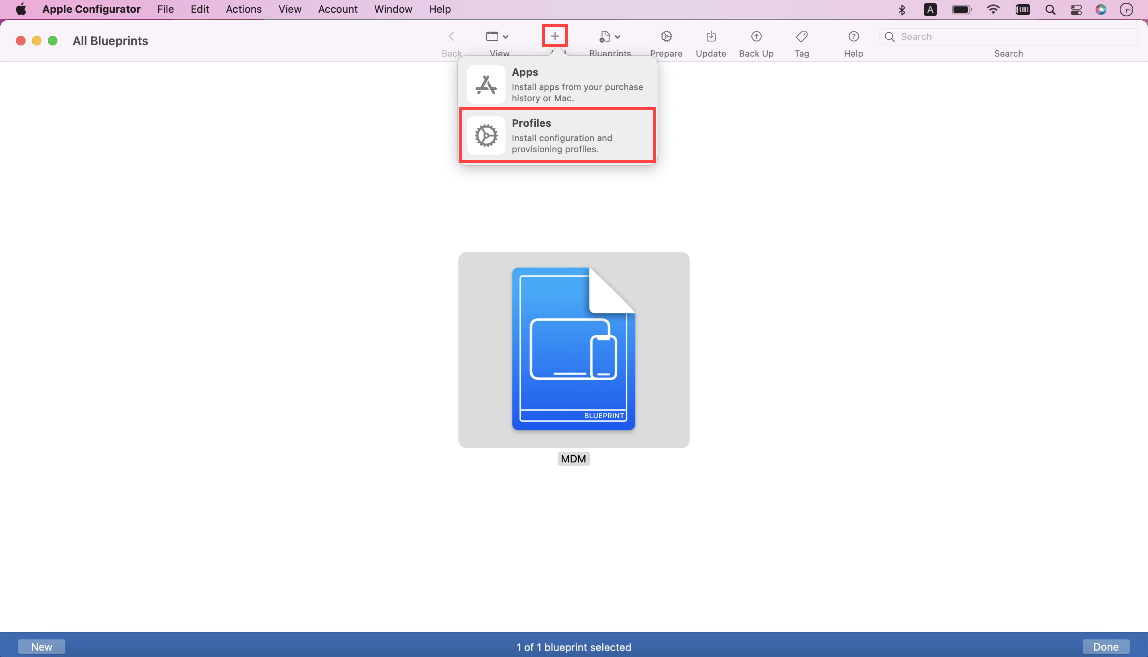
- Select the Wi-Fi profile you created and click Add.
Prepare the blueprint
- Click the blueprint, then click Prepare.
- In the Prepare Devices window, select Prepare with > Manual Configuration.
- Confirm that the Supervise devices check box is selected.
- Click Next.
- On the Enroll in MDM screen, click Server > New Server, then click Next.
- In Name, type a descriptive name for the Datto RMM MDM server.
- In Host name or URL, type the enrollment URL displayed in the USB enrollment section of Datto RMM.
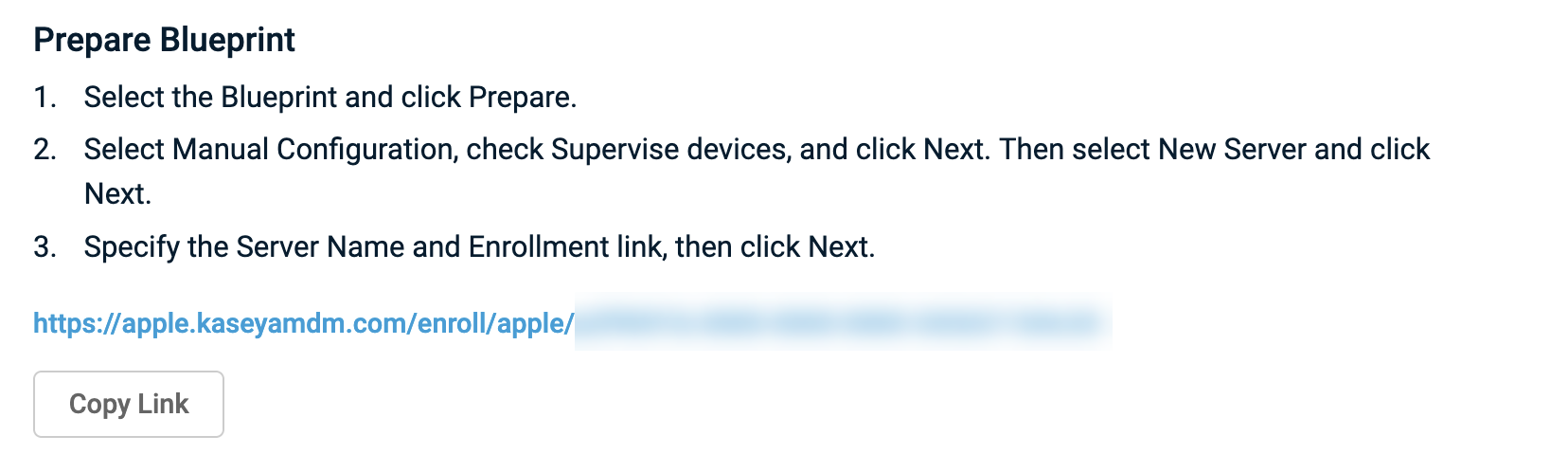
- Click Next. Apple Configurator retrieves the required trust anchor certificates automatically.
- If prompted, sign in to Apple Business or Apple School Manager according to your organization's device-management process.
Configure the organization and supervision identity
- On the Create an organization screen, type the name of the organization with which this device will be associated, then click Next.
- When prompted, select Generate a new supervision identity and click Next.
IMPORTANT Supervision enables additional Apple management capabilities on the device.
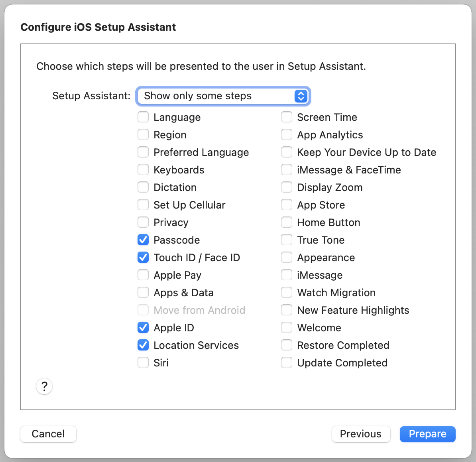
- Configure the iOS Setup Assistant screens that you want users to see during setup.
- Click Prepare.
Apply the blueprint to the device
- Connect the iPhone or iPad to the Mac running Apple Configurator using a USB cable.
- In Apple Configurator, select the connected device.
NOTE If the device does not appear in Apple Configurator, refer to Apple MDM in Datto RMM.
- Right-click the device, select Apply, and choose the blueprint you created.
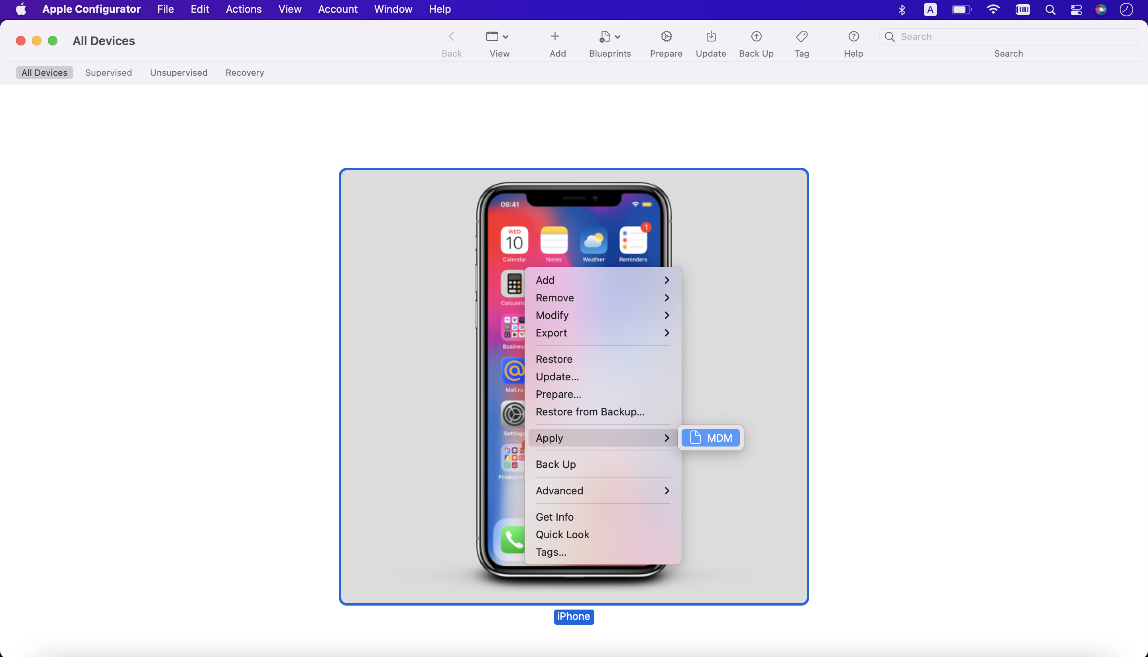
- Click Apply and wait for Apple Configurator to complete the preparation process. This may take several minutes.
Complete device setup
- Follow the on-screen setup instructions on the iPhone or iPad.
- Complete any required setup steps and allow the device to connect to the internet.
- Wait for the device to complete MDM enrollment.
Verify enrollment in Datto RMM
- Go to Devices.
- Locate the newly enrolled iPhone or iPad in the Site selected during enrollment.
- Open the device card and verify the following:
- MDM Enrolled is Yes.
- Enrollment type shows Manual.
- The device is Supervised.
NOTE If the device does not appear in Datto RMM, refer to Apple MDM in Datto RMM
Use Automated Device Enrollment
Automated Device Enrollment (ADE) automatically enrolls organization-owned Apple devices into Datto RMM during device setup.
Prerequisites
Before you begin:
- Configure an active APNs certificate to connect DRMM to Apple services.
- Create an ADE token and connect it to Apple Business.
- Assign the Apple devices you want to manage to the corresponding Datto RMM MDM server in Apple Business.
How ADE works
After a device is assigned to the MDM server, it becomes visible in Datto RMM on Setup > Integrations > Apple MDM > Automated Device Enrollment > Devices.
Before activation, the device appears with Status = Unenrolled and is not visible in the standard Devices list.
When the device is powered on and completes setup, the status changes to reflect that it is enrolled into remote management and ready for management. After successful enrollment:
- Status changes to Enrolled.
- The device is enrolled in supervised mode.
- Assigned Apple MDM policies and payloads can be applied.
- Supported MDM commands become available.
NOTE If a device was enrolled with a different method, it shows Enrolled with a yellow warning: "This device was not enrolled via its assigned ADE token. To apply ADE supervision, the device must be wiped and re-enrolled."
NOTE ADE tokens are only valid for one year, and must be renewed periodically. Refer to Renew an ADE token.
Manage Apple devicesApple MDM brings managed Apple devices into Datto RMM alongside your other managed devices. You can view and manage macOS, iOS, and iPadOS devices using the same Sites, device views, filters, groups, and policy workflows used for other Datto RMM endpoints.
After a device is enrolled, use the Device card and the Devices page to review its MDM status, identify how it was enrolled, and manage the device.
View Apple MDM devices
Apple MDM devices appear in the standard Devices list.

- Use the standard Type and Operating System fields to identify the Apple device platform.
- Use filters and the column chooser to identify MDM devices and review their MDM-specific properties.
Device card MDM properties
Use the device card to access device management actions and review the current state of the device.
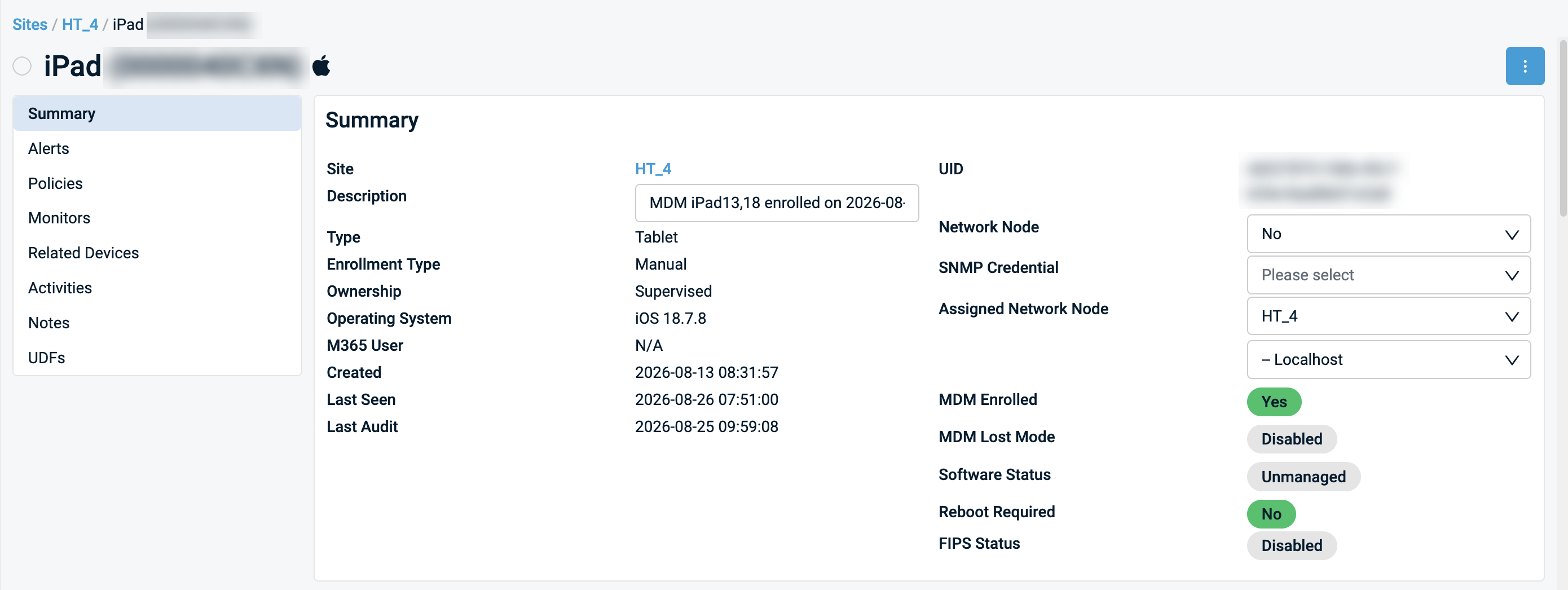
The Device card includes the standard Datto RMM device information together with MDM-specific information:
| Property | Description |
|---|---|
| MDM Enrolled | Indicates whether the device is currently enrolled in MDM. |
| Ownership | Displays the Apple device's supervision status: Supervised or Unsupervised. It does not indicate whether the device is company-owned or personally owned. |
| Enrollment type | Shows how the device was enrolled, manually or by Automated Device Enrollment (ADE). |
| MDM Lost Mode | Indicates whether Lost Mode is enabled or disabled on iOS/iPadOS devices. Not shown for macOS devices. |
| Description | For MDM devices, contains product name and enrollment date and time. |
Supervision status
Apple devices can be Supervised or Unsupervised. Supervision affects which Apple MDM policies and commands are available. Refer to Supervised and unsupervised Apple devices.
Enrollment status
The enrollment status determines whether MDM management is available. When a device is enrolled, it can receive supported Apple MDM policies and commands. When a device is no longer enrolled, it remains visible in Datto RMM, but its MDM functionality is limited. Refer to the following table for details.
| Status | Visibility | MDM commands | MDM policies | Online status | Activity logs |
|---|---|---|---|---|---|
| Enrolled | Visible | Available | Applied and updated | Reflects device connectivity | Available |
| Unenrolled | Visible | Unavailable | No longer updated on the device | No longer updated on iOS and iPadOS devices | Available |
ADE devices before enrollment
Devices assigned through Apple Business appear in Setup > Integrations > Apple MDM > Automated Device Enrollment > Devices.
NOTE Before an assigned device is activated and completes enrollment, it will not appear in the standard Devices list because it is not yet fully manageable through MDM.
Delete an Apple MDM device
Deleting an Apple MDM device from Datto RMM unenrolls the device, removes the management profile from the device, and releases Apps and Books licenses.
NOTE Deleting the device from Datto RMM does not remove it from Apple Business or Apple School Manager. If it remains assigned to an ADE MDM server, it remains visible in the applicable Apple portal and in Datto RMM in Setup > Integrations > Apple MDM > Automated Device Enrollment > Devices.
Supervised and unsupervised Apple devicesSupervision is an Apple device-management state that provides organizations with additional management capabilities. Datto RMM supports both supervised and unsupervised Apple devices. The policy settings, applications, and commands available to a device depend on its Apple platform, operating-system version, enrollment method, and supervision status.
How devices become supervised
- Automated Device Enrollment: Eligible devices enrolled through ADE are supervised.
- USB with Apple Configurator: An iPhone or iPad is supervised when Supervise devices is selected during preparation.
- Other manual enrollment methods: Supervision depends on the Apple platform and enrollment workflow.
- Mac: Mac is supervised after every enrollment method: QR code, link, and Automated Device Enrollment.
For more information on enrollment methods, refer to Enroll Apple devices.
General capability differences
| Area | Supervised devices | Unsupervised devices |
|---|---|---|
| Typical use | Organization-owned devices | Personal or BYOD devices |
| Management capabilities | Additional Apple MDM controls and restrictions | More limited Apple MDM controls |
| Device commands | Additional supported commands may be available | A more limited command set |
| Application management | Some supported application workflows can run without user interaction | User interaction may be required |
| Profile removal | Can be restricted depending on enrollment and configuration | Management is more commonly removable by the user |
| User privacy | Greater organizational control | Greater user control and privacy |
IMPORTANT Exact capabilities vary by Apple platform, operating-system version, enrollment method, policy payload, and application source.
Supervision and MDM commands
Supervision enables additional Apple MDM commands, but supervision alone does not determine command availability.
Command availability also depends on the device platform, operating-system version, and enrollment method.
Refer to Run Apple MDM commands.
Check supervision status in Datto RMM
- Open the Device card.
- In Summary, review Ownership.
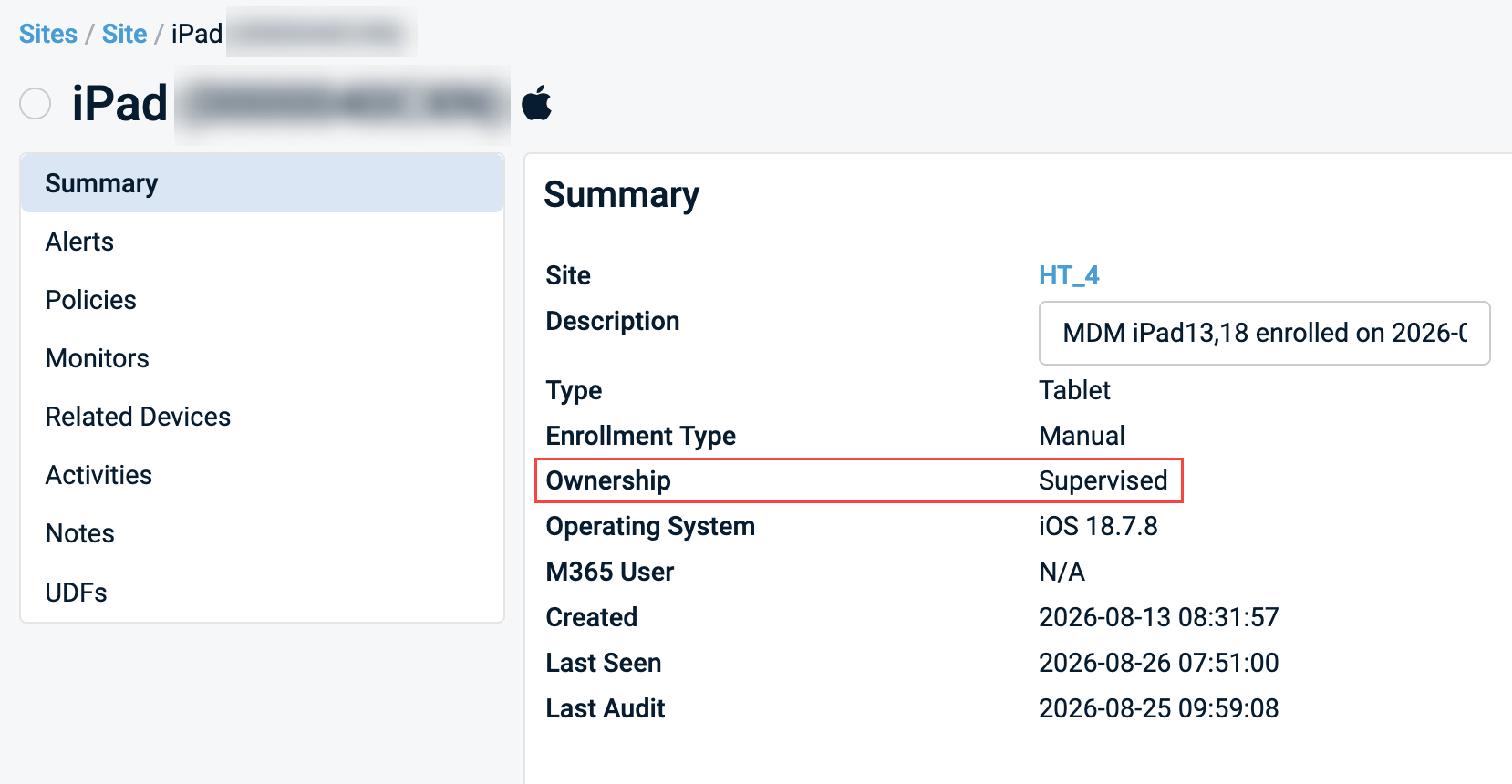
- Alternatively, add Ownership to the Devices list using the column chooser.
NOTE For Apple MDM devices, the Ownership field represents only supervision status. It does not indicate whether the device is legally company-owned or personally owned.
Configure Apple MDM policiesAn MDM policy in Datto RMM is used to configure and manage enrolled Apple devices. Use MDM policies to configure Apple device settings such as networking, security, system behavior, and application restrictions. When a policy targets an enrolled Apple device, Datto RMM delivers the configured payloads through the Apple Push Notification Service.
An MDM policy defines which Apple devices should receive a configuration. A payload contains the Apple MDM settings to apply to those devices. A policy can contain multiple payloads. For example, one policy can contain network, security, and restriction payloads and target them to the same group of Apple devices.
Create an Apple MDM policy
- Go to Policies.
- Click Create Policy.
- Type a Name for the policy.
- Optionally type a Description.
- Select the appropriate scope.
NOTE For more information about policy scope, refer to Scope.
- In Type, select MDM.
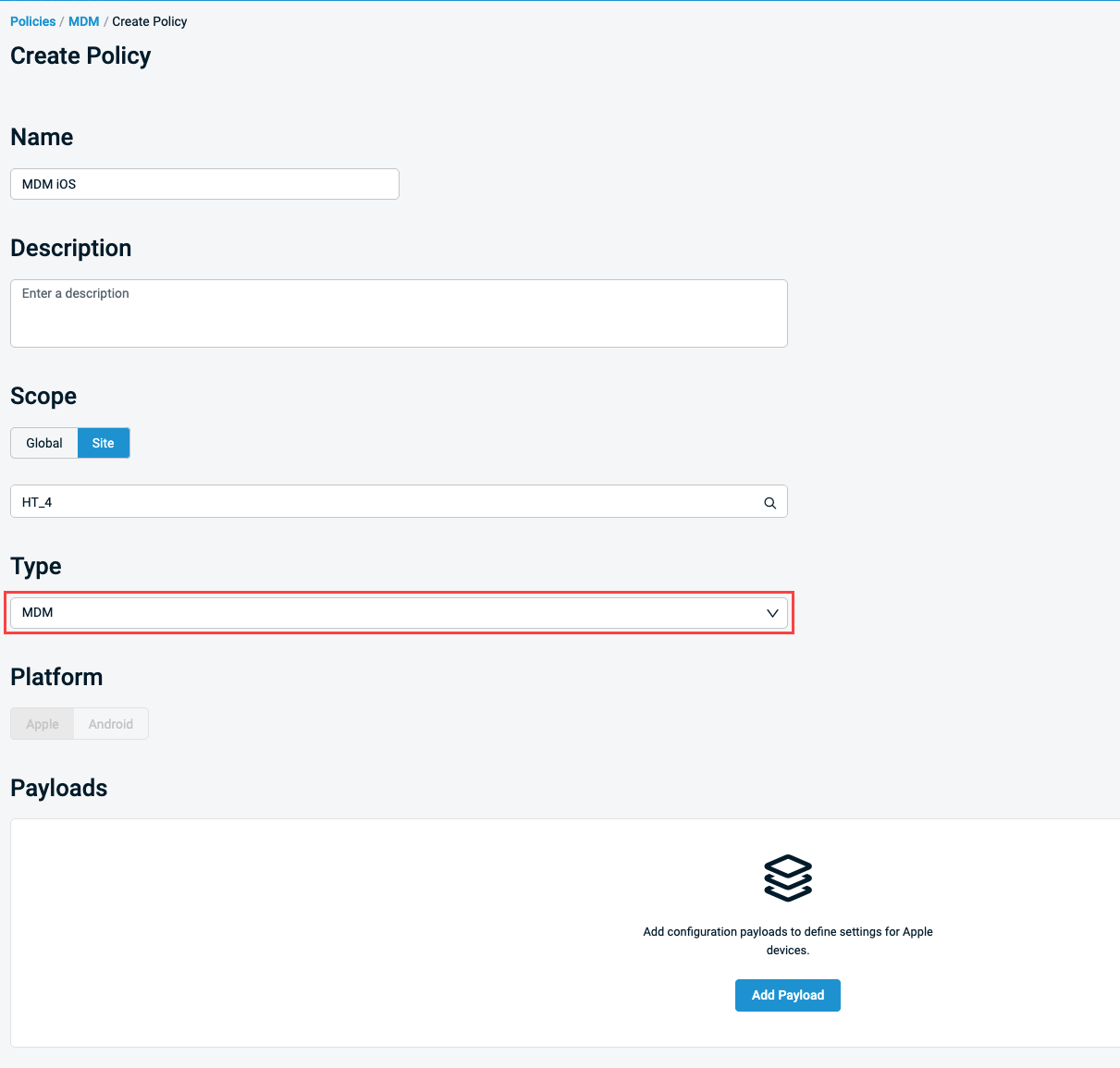
NOTE To edit an existing MDM policy, navigate to Policies > MDM and click the name of the policy to open it.
Add and configure payloads
- Click Add Payload.
- Search for a payload by payload name or property name, or browse the available payloads. Use the platform filters to identify payloads intended for macOS, iOS, or iPadOS.
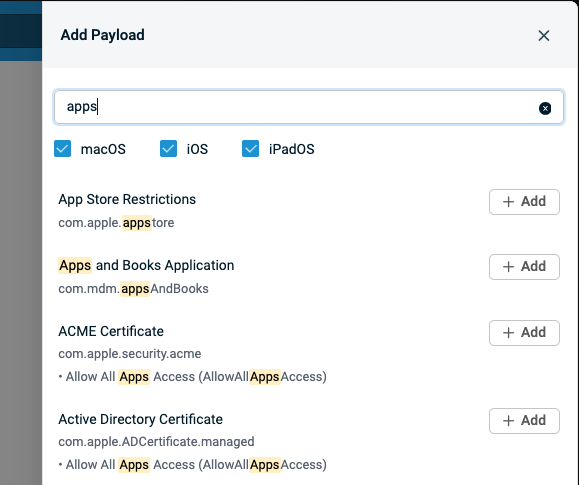
- Click Add next to the payload you want to use. The payload is added to the policy.
NOTE Some payloads support multiple configurations and can be added more than once.
- Configure the available settings. Review any required fields and defaults.
NOTE Apple defines the payload settings and their platform availability. Use the Learn more link associated with a payload to review Apple's documentation for that configuration.
- Repeat for each payload in the policy.
IMPORTANT Some settings in a payload may require supervised devices. Review the setting platform, operating-system, and supervision requirements before adding it to the policy.
Target the policy to Apple devices
- Scroll to Targets.
- Click Add Target.
- Select the required target type.
- Select the Sites, groups, or filters that should receive the policy.
- Save the target.
NOTE For more information on policy targeting, refer to Targets.
Save the policy
- Select one of the following:
- Save and deploy now to save the policy and deploy it immediately.
- Save and deploy later to save the policy, and defer deployment until later when the policy is recalculated. To learn how policy memberships get recalculated, refer to Policy membership recalculation.
Verify deployment
- Open the device card for a targeted Apple device.
- Open Activities and look for the MDM - Policy Processed event.
- In the Activity Log, filter by the device and the MDM - Policy Processed event.
- Verify that the settings defined in the policy payloads were applied successfully.
If the policy settings have still not applied to the device, refer to Apple MDM in Datto RMM
Manage Apple applicationsApple MDM policies allow you to deploy and manage applications on supported iPhone, iPad, and Mac devices.
Datto RMM supports applications from the App Store, Apps and Books, and Custom Applications. The available deployment options and level of user interaction depend on the application source, device platform, enrollment method, and supervision status.
Choose an application source
| Application source | Best suited for | Key considerations |
|---|---|---|
| App Store | Public App Store applications | May require an Apple Account on the device depending on the device state and deployment method |
| Apps and Books | Organization-managed applications | Uses licenses from Apple Business or Apple School Manager. NOTE Applications must first be acquired in Apple Business or Apple School Manager, including free applications. |
| Custom Applications | Applications distributed outside the App Store | Requires a hosted package and application-specific configuration. NOTE Custom Applications will require a more in-depth configuration and may require troubleshooting to work properly. |
NOTE Devices are checked for uninstalled or out-of-date apps on a 24-hour cycle, so if a user manually uninstalls an app, it is reinstalled within a day. Automatic updates apply only to apps that have automatic update enabled.
Deploy an Apps and Books application
- Create a new MDM policy, or edit an existing one. Refer to Create an Apple MDM policy.
- In the MDM policy, click Add Payload and select Apps and Books Application.
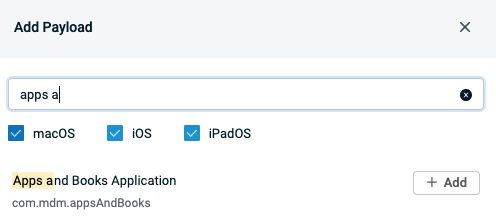
- Click Add.
- Use the Connector drop-down to select your Apps and Books token.
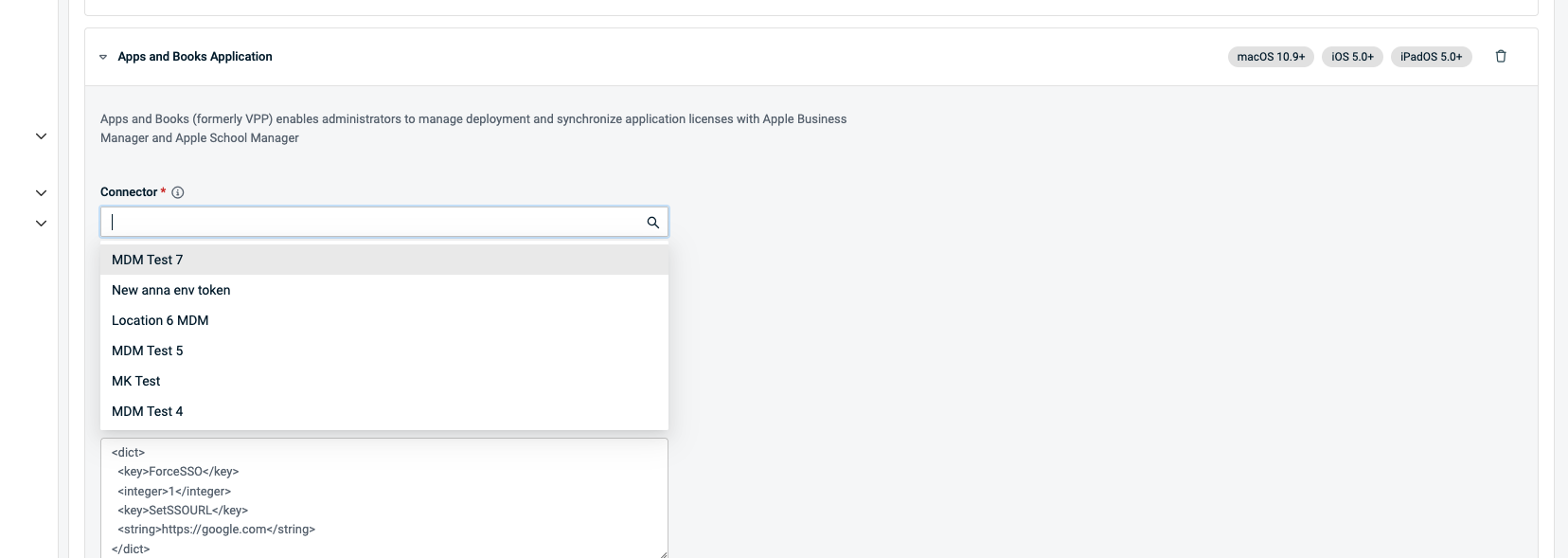
- Select an application from the Application drop-down.
- Enter any application configuration settings in the Configuration field.
NOTE Refer to the application vendor's documentation for directions on configuring these settings in the proper format.
- Select or clear the following options as needed:
- Update the application to the latest version automatically: Keeps the app up to date on targeted devices.
- Delete the app when the device is unenrolled from MDM: Removes the managed application from the device when MDM management is removed.
- Prevent the backup of app data: Prevents the application's data from being included in device backups.
- Click Add another Apps and Books Application to add another app configuration, and repeat for all apps you want to add to the policy.
Deploy an App Store application
- Create a new MDM policy, or edit an existing one. Refer to Create an Apple MDM policy.
- In the MDM policy, click Add Payload and select App Store.
- Click Add.
- Use the Country drop-down to select the country where the requested app resides.
- Type in the Application field to search the App Store and click to select the application you want to configure.
- Select or clear the following options as needed:
- Automatically update application: Keeps the application up to date on targeted devices.
- Remove application when profile is removed: Forces the application to be removed from any targeted devices if they are unenrolled from MDM.
- Prevent backup: Omits the app and app data from device backups.
- Click Add and repeat for all apps you want to add to the policy.
Deploy a custom application
- Create a new MDM policy, or edit an existing one. Refer to Create an Apple MDM policy.
- In the MDM policy, click Add Payload and select Custom Applications.
- Click Add.
- In the File Link section, type the link to the application's PKG file and click Next. Datto RMM retrieves the application metadata and displays the Name, Bundle ID, and Version for confirmation.
NOTE If the link to the file is inaccessible or incorrectly formatted, you will receive a warning and will not be able to save the application.
- If you want to define preconfigured settings during deployment, type those settings in the Configuration text box in plist format.
- Select whether you want to delete the application when the device is unenrolled from MDM, whether you want to prevent the backup of application data, and confirm that you agree with the Kaseya Master Agreement.
IMPORTANT You must agree with the Kaseya Master Agreement to save a custom application.
- Repeat for all custom applications you want to add.
Application installation behavior
When using the Apple MDM policy to deploy applications, different conditions will impact the installation process. Review the following table for details.
| Supervision | Application source | Application already installed | Application not installed | Installed by the user |
|---|---|---|---|---|
| Supervised | App Store | Installs silently in the background | Installs with prompt if device is unlocked; stays uninstalled if locked | Becomes managed silently |
| Supervised | Apps and Books | Installs silently | Installs silently | Becomes managed silently |
| Unsupervised | App Store | User prompt required | User prompt required | Becomes managed with user confirmation |
| Unsupervised | Apps and Books | User prompt required | User prompt required | Becomes managed with user confirmation |
Application installation notes
- Supervised devices allow for background installation and management of apps without user interaction, but only for Apps and Books and previously installed App Store apps.
- Unsupervised devices require user approval for installation and management. Apps and Books apps benefit from silent installation when possible, avoiding App Store authentication.
- If an app is installed by a user, it can be managed automatically in supervised scenarios but requires user confirmation on Unsupervised devices. Full silent install is available only for Supervised devices with Apps and Books.
Run Apple MDM commandsRun supported Apple MDM commands from the Device card in Datto RMM. Command availability depends on the device platform, enrollment method, and supervision status.
BEFORE YOU BEGIN Verify that you have Sites > Devices = Manage permission to run commands on a device.
NOTE MDM commands are available only for devices that are enrolled in MDM.
IMPORTANT The device must have an internet connection to receive and process an MDM command. Wi-Fi and cellular connections are supported. An Apple ID or SIM card is not required for command delivery.
Command availability matrix
| Command | iPhone/iPad: QR code (Unsupervised) | iPhone/iPad: USB (Supervised) | Mac: Link (Supervised) |
|---|---|---|---|
| Restart | Not available | Available | Available |
| Shutdown | Not available | Available | Available |
| Lock | Available | Available | Available |
| Lost Mode | Not available | Available | Not available |
| Play Lost Mode Sound | Not available | Available | Not available |
| Erase | Available | Available | Available |
Run an MDM command
- Open the device you want to manage.
- On the Device card, click the three-dot menu in the device header.
- In the MDM section, select the command you want to run.
- Complete any additional fields required by the command.
- Click Confirm.
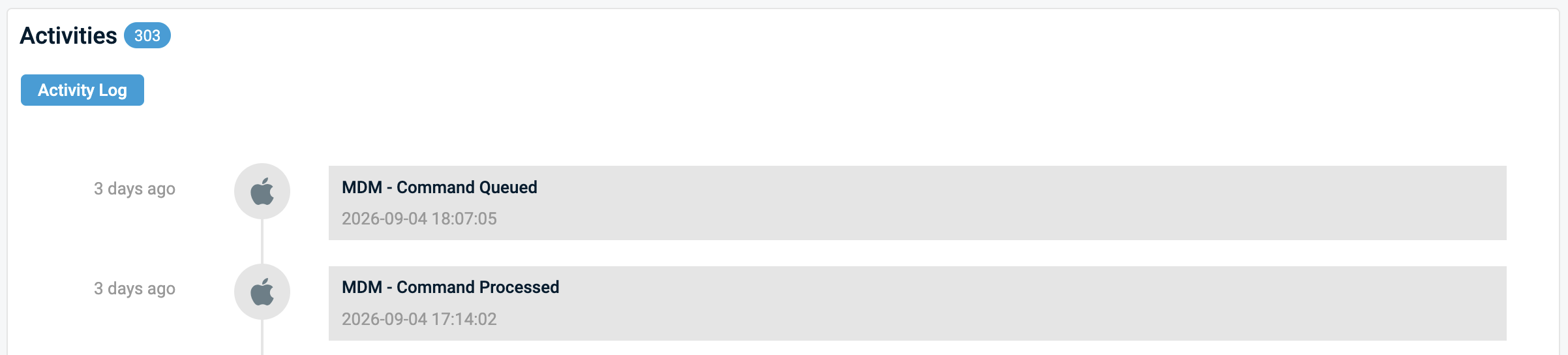
- Verify the result in the Activities section, or in the Activity Log.
NOTE After you confirm a command, Datto RMM sends the request to Apple. Kaseya cannot guarantee how quickly a device will receive or execute a command.
Command details
Lock: Locks the device when the command is successfully delivered.
Lost Mode: Use when a supported iPhone or iPad is missing or suspected to be stolen. When activated, Lost Mode locks the device and can display a custom message and contact number on the lock screen.
Play Lost Mode Sound: Available when the device is in Lost Mode. Plays a sound on the device to help locate it.
Erase: Returns the device to its initial setup state and removes the MDM profile. Any data that has not been backed up may be lost. After an erase, the device must complete the applicable enrollment process before it can be managed again.
IMPORTANT Erase permanently removes data from the device.
View command history
MDM command activity is recorded in the Activity Log. Use the device name, Site, and date range filters to locate the relevant activity. Use the following action filters:
- MDM Command Queued: Datto RMM accepted the command and queued it for delivery.
- MDM Command Processed: MDM service processed the command request.
NOTE MDM commands are asynchronous. After you confirm a command, Datto RMM sends the request to Apple, but delivery to the device may be delayed. The command may remain queued while Apple attempts to deliver it. Refer to Apple MDM in Datto RMM
Maintain Apple MDM integrationsApple MDM certificates and tokens expire and must be renewed to maintain device communication, automated enrollment, and managed application deployment. Review integration expiration dates regularly and complete renewal before an integration expires.
IMPORTANT Do not delete the existing integration as part of renewal. Renew or replace the certificate or token associated with the existing integration.
Integration maintenance overview
| Integration | Used for | Maintenance action |
|---|---|---|
| APNs certificate | Communication between Datto RMM and enrolled Apple devices | Renew the existing certificate in the Apple Push Certificates Portal and upload it to Datto RMM |
| Automated Device Enrollment token | Synchronization with Apple Business or Apple School Manager for ADE | Download a new service token for the existing MDM server and upload it to Datto RMM |
| Apps and Books token | Synchronization of managed applications and application licenses | Download a new content token for the existing Apple content scope and upload it to Datto RMM |
Renew an APNs certificate
Renew an APNs certificate before it expires to maintain communication between Datto RMM and enrolled Apple devices. Use the same organization-controlled Apple account that was used to create the existing certificate.
IMPORTANT Renew the existing certificate in the Apple Push Certificates Portal. Do not create an unrelated APNs certificate as part of the renewal workflow.
- Go to Setup > Integrations > Apple MDM > APNs.
- Locate the certificate you want to renew and click it to edit.
- Click Download CSR. Datto RMM downloads a Certificate Signing Request file.
- Click Go to Apple Portal.
- Sign in to the Apple Push Certificates Portal with the Apple account used to create the existing certificate.
- Locate the existing APNs certificate and select Renew.
- Upload the CSR generated by Datto RMM.
- Download the renewed APNs certificate.
- Return to Datto RMM.
- Upload the renewed certificate.
- Click Save.
After saving, confirm that Status is Active, Expiration shows the new expiration date, Apple ID identifies the account used to maintain the certificate, Scope still includes the expected Sites, and existing managed-device associations remain available.
Renew an Automated Device Enrollment token
Automated Device Enrollment service tokens expire after one year and must be replaced. Renew the token before expiration to maintain synchronization between Datto RMM and Apple Business or Apple School Manager.
- Go to Setup > Integrations > Apple MDM > Automated Device Enrollment.
- Locate the ADE token you want to renew and click it to edit.
- Open Apple Business or Apple School Manager.
- Locate the existing MDM server associated with the Datto RMM ADE token.
- Download a new MDM server token for the existing server.
- Return to Datto RMM.
- In Upload Server Token, upload the
.p7mfile downloaded from Apple. - Complete the renewal.
After saving, confirm that Status is Active, Expiration shows the new expiration date, Enrollment Site is unchanged, the expected APNs certificate remains associated, and the existing device count and MDM server association remain available.
If ADE devices no longer synchronize after renewal, refer to Apple MDM in Datto RMM
IMPORTANT If the Apple account used to download the service token changes its password, or if the account owner leaves the organization, replace the token promptly.
Renew an Apps and Books token
Apps and Books content tokens expire after one year. A content token also becomes invalid if the password changes for the Managed Apple Account used to download it. Renew the token before expiration to avoid interruption to application-license synchronization and assignment.
- Go to Setup > Integrations > Apple MDM > Apps and Books.
- Locate the token you want to renew and click it to edit.
- Open Apple Business or Apple School Manager.
- Go to Settings > Payments & Billing > Apps and Books.
- Locate the same organizational unit or location represented by the existing Datto RMM token.
- Download a new content token.
- Return to Datto RMM.
- In Upload Content Token, upload the
.vpptokenfile downloaded from Apple. - Click Save.
After saving, confirm that Status is Active, Expiration shows the new expiration date, Name identifies the expected customer and Apple content scope, Apple ID identifies the account responsible for maintaining the token, and existing application assignments remain available.
If applications no longer appear after renewing your Apps and Books token, refer to Apple MDM in Datto RMM
FAQ
Which file do I upload when renewing an integration?Upload the file that matches the integration type: the certificate file for APNs, a .p7m file for the ADE token, or a .vpptoken file for the Apps and Books token.
Also confirm that the file belongs to the existing integration being renewed, not a newly created one. Uploading the wrong file type or a file from a different integration prevents the renewal from completing successfully.
Why does my device not appear in Apple Configurator?Confirm that the device is powered on, is connected with a USB cable that supports data transfer, and that Apple Configurator is running on the Mac.
When manually enrolling devices via USB, using the appropriate USB cable is key. Test data transfer functionality and test with multiple devices to troubleshoot effectively.
Why does my device not appear in Datto RMM after enrollment?Confirm that the correct Site was selected, that the Site has an associated APNs certificate, that the enrollment process was fully completed on the device, and that the device has an internet connection.
For ADE devices, note that a device assigned to the MDM server appears on the Setup > Integrations > Apple MDM > Automated Device Enrollment > Devices page but does not appear in the standard Devices list until it is powered on and completes setup.
Why are MDM commands not running against a device?Confirm that the device is enrolled in MDM, that the device platform and enrollment method support the command, and that the device has the required supervision status.
Command availability also depends on the device's operating-system version. Review the command availability matrix to confirm whether the command is supported for the device's platform and supervision state.
If the command remains queued, verify that the device is powered on and connected to the internet. Commands may remain queued until Apple can communicate with the device.
If the command timed out, check the Activity Log for the command event, then verify the device's current enrollment and connectivity status. If the command is still queued, wait for the device to reconnect before retrying. Repeatedly sending the same command may create additional queued requests.
Why do applications not appear after my Apps and Books token is renewed?Confirm that the renewed token represents the same Apple organizational unit or location, that the application licenses remain in that content scope, that the token status is Active, and that application and license synchronization has completed.
Synchronization runs after the token is saved and may take a few minutes. If applications still do not appear after synchronization completes, confirm that the required applications have been acquired in the Apple content scope represented by the token.
Why are ADE devices no longer synchronizing?Confirm that the renewed token belongs to the existing MDM server, that the token was uploaded to the correct Datto RMM ADE integration, and that the MDM server still has devices assigned to it in Apple Business or Apple School Manager.
Synchronization runs after the token is saved and may take a few minutes.
Why is my MDM policy not applying to a device?Confirm that the device is enrolled in MDM, that the device matches the policy target, that the policy is active, and that the device has the supervision status required by the payload.
Also confirm that the device can communicate with Apple's MDM service. If the policy was processed but the setting was not applied, verify that the device supports the payload and that the configured setting is supported by the device's operating-system version.


