Datto RMM 15.2.0 release notes
Schedule*
IMPORTANT Due to an issue affecting device filters that combine negative query conditions after release, the Pinotage release is being patched to revert this change, and the other platforms are delayed until further notice. Check the Status page for further information on this issue.
| Platform | Date | From (UTC) | To (UTC) | Duration |
|---|---|---|---|---|
| Pinotage (EU1) | Thursday, October 22, 2026
|
18:30 | 22:30 | 4 hrs |
| Syrah (APAC) | Monday, November 2, 2026 | 14:00 | 18:00 | 4 hrs |
| Zinfandel (US West) | Tuesday, November 3, 2026 | 09:00 | 13:00 | 4 hrs |
| Concord (US East) | Thursday, November 5, 2026 | 07:00 | 11:00 | 4 hrs |
| Vidal (US East) | Monday, November 9, 2026 | 07:00 | 11:00 | 4 hrs |
| Merlot (EU2) | Tuesday, November 10, 2026 | 18:30 | 22:30 | 4 hrs |
NOTE *The schedule is subject to change. Check the Status page for regular updates. Any changes made to the original schedule are denoted in red.
IMPORTANT This is a full platform and Agent release; therefore, partners should expect brief disconnections of the Agent during the update window.
Announcements
Pinotage Hotfix
A hotfix for Pinotage is scheduled Thursday, October 29 from 18:30 to 19:30 UTC . This hotfix addresses the following:
- Addressed an issue affecting device filters that utilize compound criteria, such as "does not contain" combined with nested logical operators.
- Resolved an issue where some active Datto RMM API tokens were being rejected, even though their keys were valid.
- Optimized database audit processing to reduce load on the database.
- Resolved an issue with Web Remote connection failures to devices running older macOS versions.
- A previously planned change to UDF and Software Management filtering logic was reverted.
The rest of the platform deployments will include these changes and not require a hotfix.
About the release
The 15.2.0 release is the fifth of our 2026 releases. See below for the highlights, along with the full list of fixes and improvements. As always, we look forward to your feedback as we continue to improve the product with each release.
New features
FIPS 140-3 validated communications - Restricted Access phase
What is Restricted Access?
Restricted Access is a pre-general access (GA) program that makes new features available to a selected group of customers ahead of the general release. It allows Kaseya to gather real-world feedback on performance, compatibility, and usability in production environments before the feature is made available to all tenants.
Participation in Restricted Access for FIPS 140-3 validated communications is by invitation. Participants are expected to:
• Enable and validate FIPS mode on their account.
• Report any performance, compatibility, or compliance observations.
• Acknowledge that full public documentation and support tooling will be published at GA.
Restricted Access does not imply reduced quality. The feature has passed QA and is considered production-ready for the in-scope components. It is a controlled rollout mechanism to ensure a smooth adoption experience for all customers.
Request access to this feature.
FIPS boundary
The FIPS cryptographic boundary covers:
- Datto RMM Agent ↔ Datto RMM Platform
- Agent registration, command & control handshakes, job orchestration, telemetry submission, monitoring data streams, and package/script distribution.
- Agent Browser tools
- Technician Device / Web Remote Client ↔ Platform
- Authenticated session initialization, authentication handshakes, and remote management signaling.
- Technician Device ↔ Relay Servers
- Relay-mediated remote desktop control and media data channels (for example, Web Remote fallback via secure relay infrastructure).
- Direct Peer-to-Peer Remote Sessions (Technician Device ↔ Datto RMM Agent)
- Point-to-point remote control sessions established directly between the technician machine and target managed endpoint (using FIPS-approved TLS / DTLS tunnels).
- Platform API & Web Management Ingress (Server-Side Platform Termination)
- External REST API requests and technician web browser traffic traversing platform entry points and load-balanced endpoints.
NOTE For these channels, FIPS 140-3 cryptographic termination is enforced server-side at the platform entry point (AWS infrastructure and API gateways); this does not require or imply that third-party external API clients or technician web browsers are independently FIPS-validated.
- External REST API requests and technician web browser traffic traversing platform entry points and load-balanced endpoints.
NOTE Connections from non-FIPS agents or clients are permitted but logged as non-compliant.
Feature description
Datto RMM is introducing optional FIPS 140-3 validated cryptography for agent-to-platform and supported remote session communications, designed for organizations with security or regulatory requirements to use FIPS validated cryptography. Refer to FIPS 140-3 validated communications.
- FIPS communications are controlled through an explicit opt-in toggle in Global Settings. The setting is fully reversible, allowing FIPS communications to be enabled or disabled for the account as required.

- Once enabled through Global Settings, Datto RMM utilizes FIPS 140-3 validated cryptography for in-scope communication channels via NIST-validated Kaseya Cryptographic modules across supported Windows, macOS, and Linux devices.
- To provide clear compliance oversight, the release adds FIPS Status indicators (Compliant, Non-Compliant, and Unsupported OS) across device list and details pages, together with dedicated device filters and a FIPS Compliance Summary dashboard widget.
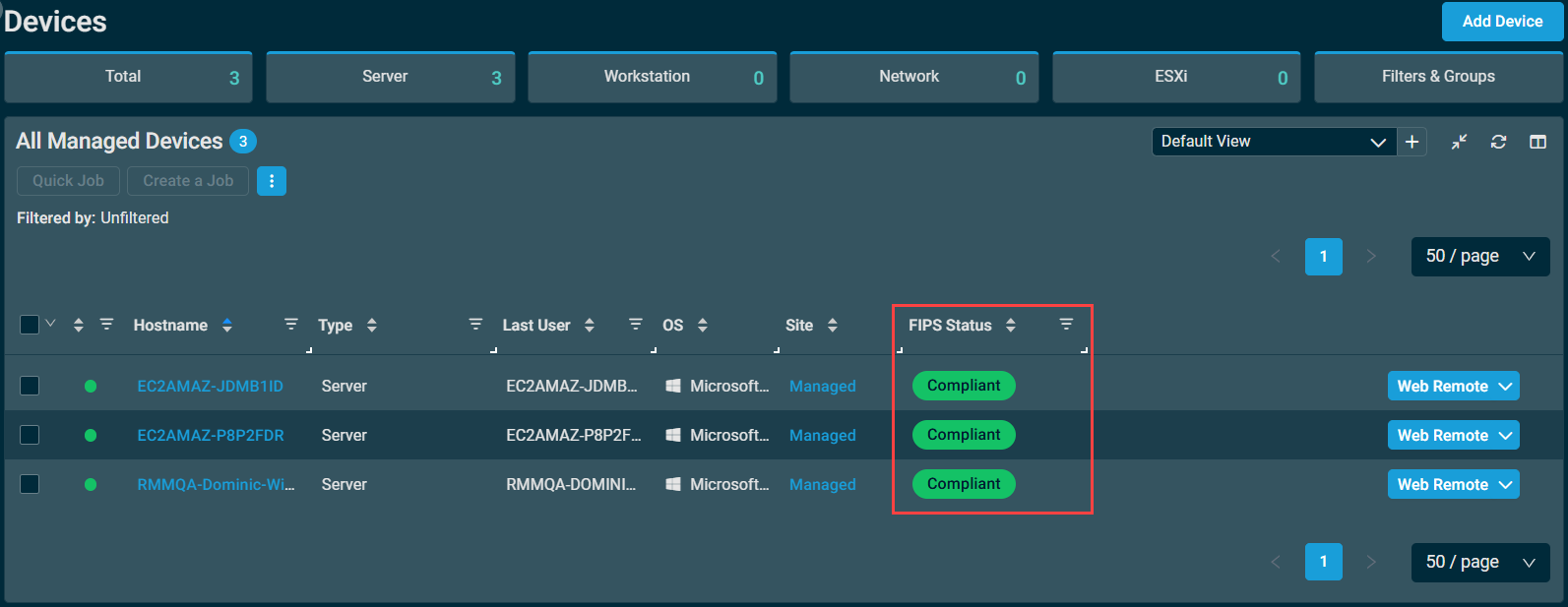
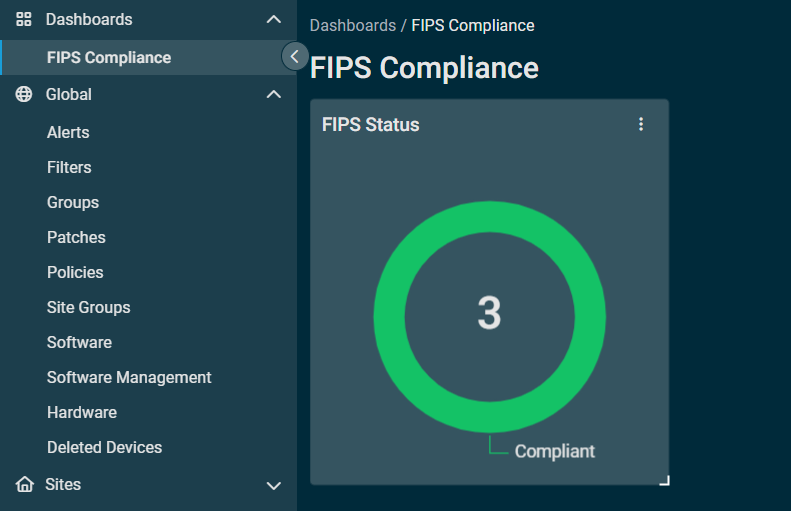
- If an individual agent is unable to establish communications using the FIPS validated cryptographic module, it will continue to connect to the Datto RMM platform using the standard secure communication mechanism rather than losing connectivity. The device will be reported as Non-Compliant, allowing administrators to identify and investigate exceptions without disrupting device management.
- FIPS compliance can be used in a custom filter to easily identify and act on non-compliant devices.

- FIPS compliance can be used in a custom filter to easily identify and act on non-compliant devices.
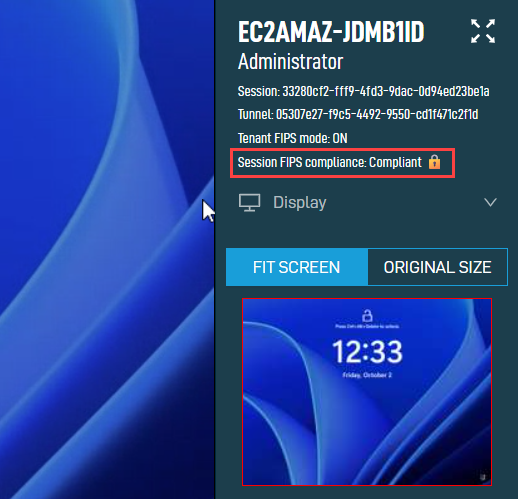
- For supported Web Remote sessions, enabling FIPS mode enforces Web Remote 2.0 and disables legacy connection options that do not support FIPS validated cryptography. Real-time session compliance indicators are displayed to technicians, and detailed Activity Log entries are automatically recorded for sessions operating in a non-FIPS state.
Out of scope
- Windows OS-level FIPS mode: Datto RMM does not currently support running the Datto RMM Agent on Windows devices where FIPS mode is enabled at the operating system level. This feature does not change that limitation. The scope is to enable the use of FIPS 140-3 validated cryptography at the communication boundary between the Datto RMM Agent and platform. It does not enable or require operating system-level FIPS mode on managed endpoints, nor does it provide FIPS validated encryption for data at rest.
Temporary limitations
- Web Remote for macOS: In addition to the Agent limitation above, Web Remote will not initially be available for remote control of macOS devices when FIPS mode is enabled. Splashtop will remain available as an alternative for remote access to those devices. Support for FIPS validated Web Remote sessions on macOS is planned for a subsequent interim release (15.2.2, currently expected in early November). Web Remote 2.0 remains available for Windows devices, subject to the feature parity limitations described below.
- Web Remote 2.0 feature parity: Enabling FIPS mode requires the use of Web Remote 2.0 for supported remote sessions because legacy Web Remote connection options do not support FIPS validated cryptography. Web Remote 2.0 does not yet have full feature parity with the legacy Web Remote experience. As a result, some Web Remote features will be temporarily unavailable when connecting to Windows devices with FIPS mode enabled. The features not yet available in Web Remote 2.0 are documented in Web Remote 2.0 early access – Kaseya. We expect to close the remaining parity gaps as part of the Datto RMM 15.3 release.
NOTE FIPS compliance requires Web Remote 2.0 (new video protocol). If FIPS mode is enabled for your account, technicians will no longer have the option to use legacy Web Remote connection types when connecting to devices.
Variable data minimization for component execution
You can now control exactly which Global and Site variables each Component sends to a device when it runs. Previously, every job sent all Global and Site variables to the target device, even when a Component didn't use them. Now, variables are sent only when explicitly selected, improving security and giving technicians clear visibility of what will be transmitted before a job runs. Refer to Variables.
What's new
- Select the specific Global and Site variables each Component requires, directly in the Component editor
- Explicit variable selection is required for all new Components — only the variables you select are sent to the device
- The variable picker respects your existing access permissions, so you only see and select variables you're authorized to access
- Review the full list of variables being sent to a device before running a job, across Quick Jobs, Scheduled Jobs, and monitor response actions
Existing components - action required
Without action, your existing components continue to work as before and devices will keep receiving all global and site variables on execution. When editing a component, you will be prompted to switch it to explicit selection to ensure that only required variable data is sent during execution. We recommend migrating all your existing components to explicit variable selection.
NOTE This change is one-way: once a Component is switched to explicit selection, it cannot be reverted to sending all variables
Apple MDM — Restricted Access
Datto RMM now includes native Apple Mobile Device Management (MDM) capability, available to invited participants through the Restricted Access program. Refer to Apple MDM in Datto RMM.
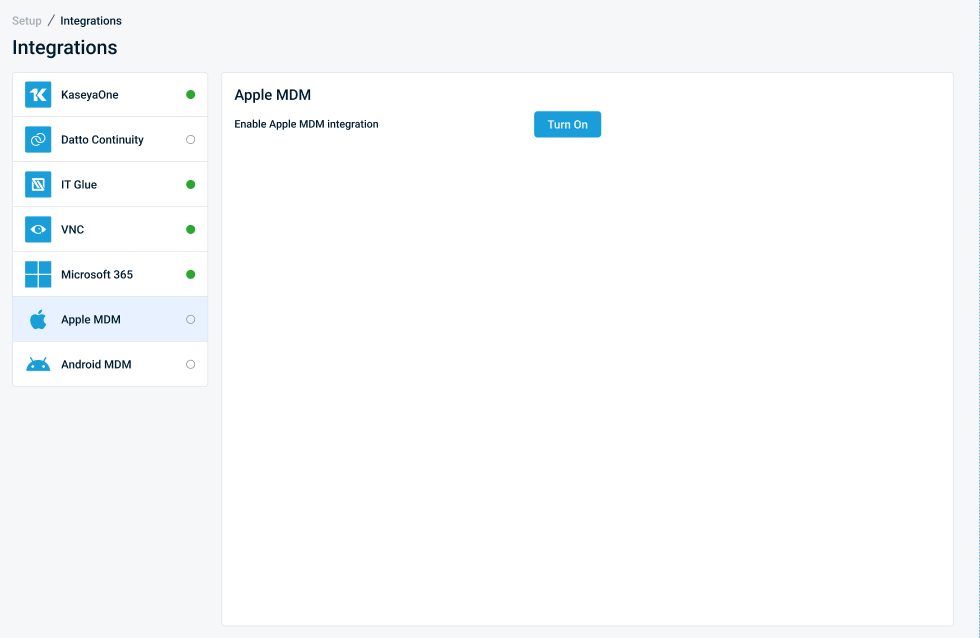
IT administrators can enroll, configure, secure, monitor, and manage Apple devices — Mac, iPhone, and iPad — from within the Datto RMM console. Enrollment is supported via QR code and Automated Device Enrollment (ADE).
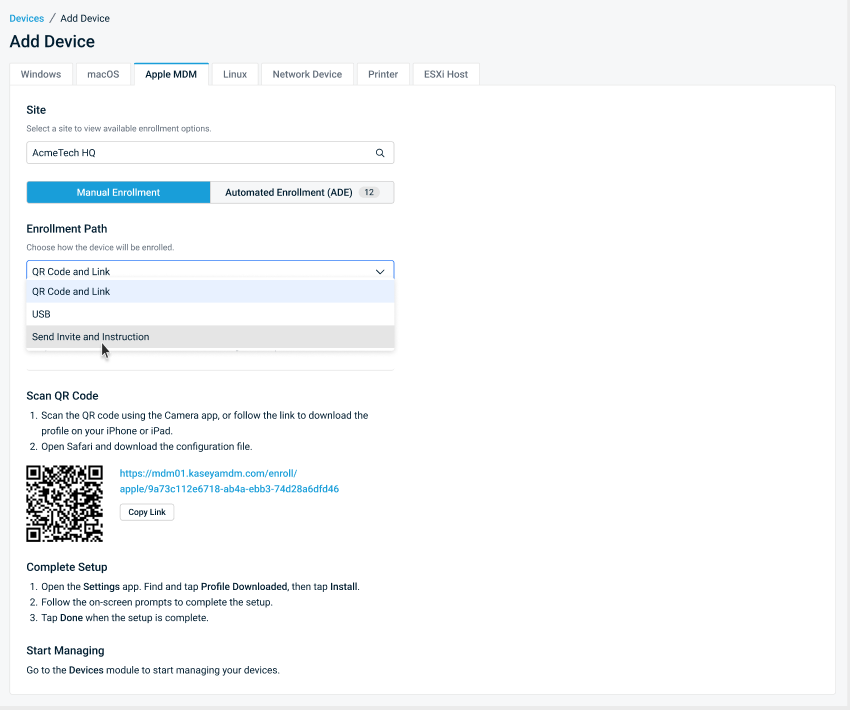
NOTE Apple MDM uses separate licensing for macOS and iOS/iPadOS devices. Macs enrolled through Apple MDM continue to use a standard Datto RMM Endpoint License. iOS and iPadOS devices require a dedicated Mobile Device Management License.
Key functions of Apple MDM in Datto RMM include:
Unified Apple device management
Manage Apple devices using the standard Datto RMM device-management model.
- View Apple devices in the standard Devices view.
- Associate devices with Datto RMM Sites.
- Use device properties to identify MDM enrollment and supervision state.
- Review MDM activity from the device and Activity Log.
- Manage Macs through both Apple MDM and the Datto RMM agent.
Apple MDM policy management
Use Datto RMM policies to configure supported Apple device settings.
- Create Apple MDM policies.
- Add one or more Apple MDM payloads to a policy.
- Search and filter payloads by Apple operating system.
- Configure payload settings.
- Target policies using the supported Datto RMM targeting model.
- Review policy deployment activity.
MDM commands
Run supported Apple MDM commands directly from the Datto RMM device card, such as:
- Lock
- Enable/Disable Lost Mode
- Play Lost Mode Sound
- Restart
- Shutdown
- Erase
NOTE Command availability varies by platform, operating-system version, enrollment method, and supervision status.
Managed application deployment
Use Apps and Books to synchronize application and license information from Apple Business Manager or Apple School Manager and make managed applications available for assignment to enrolled Apple devices.
Microsoft 365 Integration updates
Multi-factor Authentication (MFA) status visibility in User Details
The Microsoft 365 (M365) Manager User Details card now displays the Multi-factor Authentication (MFA) status for each user. Status is shown as Disabled, Enabled, or Enforced, with colour-coded indicators that make it straightforward to identify users who have not yet completed MFA registration or where MFA is not configured.
Integration token renewal process changes
The Microsoft 365 Integration token renewal process now refreshes ahead of the 90-day expiry, removing the need to re-integrate after 90 days.
Native Apple Silicon support for the macOS agent
The Datto RMM macOS agent now runs natively on Apple Silicon (M-series) Macs, eliminating the requirement for Rosetta 2. The agent is correctly identified as "RMM Agent" in the application list and properly associates the loopback address to the hostname on startup. Full compatibility with Intel-based Macs is maintained.
AI Insights updates
Line charts and aggregate counters
Two new graphical output types were added in the chat response: line charts and aggregated counters. Line charts are interactive; you can view data by hovering over the timeline.
Improved table rendering
This release improves how tables render in chat, specifically table sizing and how they cover the chat surface for better visibility.
Global on/off control
Administrators can now control all AI Insights features from a single master toggle in Global Settings > Access Control, under the new Kaseya Intelligence section. Disabling this setting hides AI feature entry points for all users and enforces the restriction server-side. Sub-toggles for Activity Log Insights and Device Insights are also available, and all changes to these settings are recorded in the Activity Log for auditing. Refer to Kaseya Intelligence.
Patch management: multi-dimensional patch status view
The single aggregated "Patch Status" per device is replaced by a multi-dimensional breakdown that surfaces each contributing state independently. The renamed "Legacy Patch Policy Status" field is retained for backward compatibility, while new fields — including Last Patch Audit, Last Patch Audit Status, Last Patch Audit Error Code, Last Patch Deployment Status, Last Successful Patching, OS Updates State, and Patch Operations Pending — are now visible on device details and the devices table. Corresponding filters are available in custom device filters for all new fields. Refer to Determining a device's patch status.
Patch policy visibility via REST API
External systems can now retrieve the patch policy applied to a device — including policy name, identifier, approval rules, patch schedule, reboot behavior, and scope — through the new GET /v2/device/{deviceUid}/policies/patch-management REST API endpoint. The response is paginated and matches the data structure shown in the UI. Access requires Sites: View, Policies: View, and Devices: View permissions.
Extended Windows Operating System (OS) information in REST API v2
The GET /v2/audit/device/{deviceUID} endpoint now returns a new osInfo object containing additional operating system detail: Operating System (OS) name, version, architecture, display version, and installation type. Fields not available for a given device are returned as empty values.
Last Patch Audit Error Code tracking
A new "Last Patch Audit Error Code" field is now tracked per device and surfaced in the Patch Management section of device details, the devices table, and custom device filters. Technicians can use this field to quickly identify and investigate devices where patch audits have failed, without navigating to individual device records.
Autotask PSA site-level ticket integration toggle in the new UI
The per-site Autotask ticket integration toggle — previously available only in the legacy UI — is now accessible in the new UI site settings. Administrators can enable or disable PSA ticket creation for each site directly from the new interface, ensuring this configuration remains available as the legacy UI is retired. Refer to Autotask Ticket Integration.
Additions to the ComStore
We release new ComStore components and update existing ones every month. Notable additions this month include the following:
- Microsoft Defender Update Monitor [WIN]: Instructs Defender to perform a signature update. Run on a regular cadence to keep Defender signature updates out of the Windows Update queue.
- Lock Workstation [WIN]: Sends a Windows device back to the lock screen.
- User Toolkit (Local) [WIN]: Creates, deletes, enables, disables, unlocks, or changes the password for a local user, optionally by replacing it first if forgotten. Can also add users to, or remove them from, groups. Alternatively can be used with no arguments to display a detailed list of all users known to the local device. This component combines the functionality of and replaces several now deprecated components.
For more information on changes to the ComStore, refer to ComStore updates.
NOTE To access a full list of ComStore components, refer to List of ComStore components.
Advanced Software Management: October updates
New titles
- Nitro Pro 14 NLS
- Nitro Pro 14 Enterprise
- Nitro Pro 14 Retail
- Nitro Pro 14 Business
- Nitro Pro 26 Named User
Refer to Advanced Software Management and Advanced Software Management application catalog.
Want to know what's coming next?
Interested in what we're currently working on and the broader roadmap vision? Check out the Datto RMM resources feed and watch the latest Quarterly Innovations Update for a glimpse into product priorities.
Updates in this release
Agent Browser
| Type | Summary |
|---|---|
| Foundation | Agent Browser now opens significantly faster after an agent restart and reliably auto-logs in on both the initial and subsequent launches from the web portal. Previously, a fresh agent restart caused a delay of approximately one minute before Agent Browser opened, and the first login attempt often failed, requiring a manual relaunch. |
Activity Log
| Type | Summary |
|---|---|
| Fix | Hovering over activity type icons in the Device Activities card now correctly displays the activity label tooltip. Previously, the tooltip did not appear for any device. |
ComStore
| Type | Summary |
|---|---|
| Fix | Components added from ComStore now show their creation and last-updated dates. |
| Fix | The SMClient component has been updated to version 1.53.546, resolving reports of high CPU and RAM usage when using Advanced Software Management. Affected endpoints should see improved resource utilization after the update is applied. |
ConnectWise Integration
| Type | Summary |
|---|---|
| Fix | Pagination in the ConnectWise integration Manual Device Mapping screen now functions correctly when the device count exceeds the per-page limit. Users can navigate to pages beyond the first for both mapped and unmapped devices. |
Dashboard
| Type | Summary |
|---|---|
| Fix | An Alerts Over Time widget loading failure no longer causes persistent errors across dashboards. |
| Fix | Fixed an issue where the KaseyaOne Organization Dashboard showed an incorrect Datto RMM device count in the Agent Status column. |
Datto EDR Integration
| Type | Summary |
|---|---|
| Fix | A timed-out Datto EDR installation no longer leaves installation files locked, allowing subsequent installation attempts. |
Device management
| Type | Summary |
|---|---|
| Fix | The "Patch Now" button is now available for devices running Windows that was originally installed using a non-Latin locale. |
Filters
| Type | Summary |
|---|---|
| Fix | The Global Default Filters list now shows the correct totals and number of entries when displaying 50 or 100 filters per page. |
Jobs
| Type | Summary |
|---|---|
| Fix | Reduced the delay before rerun jobs start. |
| Fix | Configured email notifications are now sent when scheduled jobs expire. |
| Fix | Duplicate job alerts no longer prevent job notification emails from being sent. |
| Fix | Job scheduling now shows the correct validation message when the end time is earlier than the start time. |
KaseyaOne Integration
| Type | Summary |
|---|---|
| Fix | KaseyaOne module configuration changes now appear in the Datto RMM KaseyaOne integration settings. |
| Fix | Users with KaseyaOne SSO and Datto RMM module access no longer receive an Access Denied error when signing in through their Datto RMM platform URL or the legacy UI redirect. |
Policies
| Type | Summary |
|---|---|
| Fix | Device-level policies — including Software, Patch, EPS, and Monitor — no longer fail to deploy continuously due to ambiguous errors such as "optimistic locking failed" or "could not initialize proxy." Affected devices now receive updated policy definitions reliably. |
User interface
| Type | Summary |
|---|---|
| Fix | Event log monitor descriptions in the new UI now correctly display "Not raised" (or "Does not occur") for monitors configured with a "Not Raised" threshold, instead of incorrectly showing "Occurs." |
| Fix | When editing a User-Defined Field (UDF) global label, the list no longer re-sorts or re-filters while the user is actively typing. Sorting now triggers only on a page change, a sort order or field change, or an explicit page refresh, eliminating unexpected field movement during inline edits. |
Web Remote 2.0
| Type | Summary |
|---|---|
| Fix | Resolved an issue in Web Remote where multi-monitor Windows devices could experience incorrect display ordering and mismatched screen properties when a non-default monitor was set as the primary display. |
| Fix | Resolved an issue on Windows devices where moving the mouse on the target machine could cause the cursor to jump back to the technician's previous position during an active Web Remote session. |
ComStore updates
IMPORTANT This table does not list updates for components that are installed via Software Management.
NOTE To access a full list of ComStore components, refer to List of ComStore components.
| Component Name | Platform | New/Updated | Description/Change Summary |
|---|---|---|---|
| Audit Microsoft 365 Apps (Office) Click2Run Channel | Windows | Updated | Bugfixes |
| Audit/Delete Orphaned Routes | Windows | New | |
| Battery Cell Health Monitor | Windows | Updated | Updated from CyberDrain original to expand and improve functionality. |
| Bitdefender GravityZone - Device Monitor | All | Updated | Vendor update |
| Browser Extension Audit | Windows | New | |
| Configure Windows Targeted Release Version | Windows | Updated | Added new Windows versions |
| Datto (Backup) Windows Agent | Windows | Updated | Added chassis type 35 |
| Defragment/TRIM | Windows | New | |
| Dell Command-Update: Monitor/Install | Windows | Updated | Component now intelligently detects and updates DC|U version |
| Dell Server Monitor | Windows | Updated | Various logic and compatibility improvements |
| Disable or Enable USB Storage | Windows | Updated | Bugfixes regarding unclear output |
| Disk Health (SMART) Monitor | Windows | Updated | Updated to retain Linux functionality |
| DNS Client Feature Toolkit | Windows | New | |
| Domain Controller Monitor v4 | Windows | Updated | Improved failure output |
| Download and apply Windows Update File | Windows | Updated | Added new Windows versions |
| Forensic Audit | Windows | Updated | Added new Windows versions |
| Get/Set Default Browser | Windows | Updated | Component new makes reference to new 'UCPD Toolkit' Component upon which its successful execution relies |
| Get/Set DNS Server Addresses | Windows | New | |
| Hardware Check-In | Windows | New | Gauge health of replacable assets to motivate up-selling. Should not be used as a broad health check. |
| Huntress Agent Deployment | Windows | Updated | Vendor update |
| Install Updates with SUPER | macOS | Updated | Updated SUPER version |
| Kaseya Compliance Remediator | Windows | New | |
| Lenovo Client Update - Apply | Windows | Updated | Fixes to accommodate new PS module version |
| Lenovo Client Update - Monitor | Windows | Updated | Fixes to accommodate new PS module version |
| MegaRAID Physical Disk Status Monitor | Windows | Updated | Updated from CyberDrain original to improve functionality |
| OneDrive Sync Status Monitor | Windows | Updated | Vendor update of ODSyncUtil |
| Pia Agent | Windows | Updated | Vendor update |
| Reboot Required Monitor v2 | Windows | Updated | Improved logic |
| Reset Default File-Type Associations | Windows | New | |
| Reset Network Stack | Windows | New | |
| RMMMax Command Processor | Windows; Linux, macOS | New | New vendor Component to replace existing RMMMax loadout |
| Security (Antivirus) Monitor | Windows | Updated | Updated to accommodate new name for Webroot SecureAnywhere |
| Software Detection Monitor | Windows | Updated | Updated instructions |
| Sophos Central | macOS; Windows | Updated | Vendor update |
| Sophos Central Install Monitor | macOS | Updated | Vendor update |
| Sophos Central Status Monitor | Windows; macOS | Updated | Vendor update |
| StorCLI64 | Windows | Updated | Vendor update |
| Toggle IPv6 Binding | Windows | New | |
| User Choice Protection Driver (UCPD) Toolkit | Windows | New | |
| User Toolkit (Local) | Windows | Updated | Added UDF output |
| Windows Build Identification Tool | Windows | Updated | Added new Windows versions |
| Windows Check (DISM/SFC/CHKDSK) | Windows | Updated | Updated timeout to three hours |
| Windows Firewall State Monitor | Windows | Updated | Updated from CyberDrain original to improve functionality |
| Windows Update Status Monitor | Windows | Updated | Updated from CyberDrain original to improve functionality |
| Windows Update Toolkit | Windows | Updated | Added new Windows versions |
| Write Data to/Clear UDF | Windows | Updated | Imrpoved multiple-UDF support |
| RMMMax Chocolatey Collection | Windows | Removed | Replaced in favour of new 'RMMMax Command Processor' Component |
| RMMmax CVE Scanner | Linux, macOS | Removed | Replaced in favour of new 'RMMMax Command Processor' Component |
| RMMmax CVE Scanner | Windows | Removed | Replaced in favour of new 'RMMMax Command Processor' Component |
| RMMMax Defender Collection | Windows | Removed | Replaced in favour of new 'RMMMax Command Processor' Component |
| RMMMax Device State Collection | Windows | Removed | Replaced in favour of new 'RMMMax Command Processor' Component |
| RMMMax HomeBrew Collection | Linux, macOS | Removed | Replaced in favour of new 'RMMMax Command Processor' Component |
| RMMMax Linux Update Collection | Linux | Removed | Replaced in favour of new 'RMMMax Command Processor' Component |
| RMMmax PowerShell Manager | Linux, macOS | Removed | Replaced in favour of new 'RMMMax Command Processor' Component |
| RMMmax PowerShell Manager | Windows | Removed | Replaced in favour of new 'RMMMax Command Processor' Component |
| RMMmax Reboot Manager | Linux, macOS | Removed | Replaced in favour of new 'RMMMax Command Processor' Component |
| RMMmax Reboot Manager | Windows | Removed | Replaced in favour of new 'RMMMax Command Processor' Component |
| RMMMax SurfLog Collection | Windows | Removed | Replaced in favour of new 'RMMMax Command Processor' Component |
| RMMMax Update Manager | Linux, macOS | Removed | Replaced in favour of new 'RMMMax Command Processor' Component |
| RMMMax Update Manager | Windows | Removed | Replaced in favour of new 'RMMMax Command Processor' Component |
| RMMmax Warranty Manager | Linux, macOS | Removed | Replaced in favour of new 'RMMMax Command Processor' Component |
| RMMMax Warranty Manager | Windows | Removed | Replaced in favour of new 'RMMMax Command Processor' Component |
| Microsoft Office 365 (Semi-Annual Enterprise) | Windows | Removed | Replaced in favour of 'Monthly Enterprise' channel variant |
| Microsoft .NET Runtime v8 Installer | Windows | Removed | Removed: Dell Command|Update now works with .NET 10, removing the necessity for this Component |
| Datto EDR Uninstaller | macOS | Removed | Removed for parity with Windows uninstallation methods |
| Defraggler Defrag | Windows | Removed | Replaced in favour of 'Defragment/TRIM' |
| Sophos Central Status Monitor | macOS | Updated | Vendor update |
| Blackpoint Cyber Snap Install (v2.x) | Windows | Updated | Vendor update (name change) |
| Blackpoint Cyber Unified Agent Install (v3.x) | Windows | New | |
| AXIS SWGI Governed Actions | Windows | New | |
| Software Detection Monitor | macOS | Updated | Added support for multiple titles; added exact search; improved queries |
| Competing RMM Monitor | Windows | Updated | Updated from CyberDrain original to expand and improve functionality. |
| File Canary Monitor | Windows | Updated | Updated from CyberDrain original to expand and improve functionality. |
| IT Glue Browser Extension | Windows | Updated | Adds support for dedicated Microsoft Edge extension |


