Best practices for patching macOS devices
 Security and navigation
PERMISSIONS Refer to Jobs > Active Jobs in Permissions.
Creating a job
NAVIGATION Automation > Jobs > Create Job
NAVIGATION Job results page > select one or more devices (check boxes) > Create a Job. To view the various navigation paths you can use to access the job results page, refer to Job results.
NAVIGATION Automation > Components > hover over the Edit drop-down menu for a component > Create a Job
NAVIGATION Sites > All Sites > click the name of a site > select one or more devices (check boxes) > Create a Job
NAVIGATION Devices > All > select one or more devices (check boxes) > Create a Job
NAVIGATION Device summary page > click the More icon > Create a Job. To learn how to access the device summary page, refer to Device summary.
NAVIGATION A targeted list of devices > select one or more devices (check boxes) > Create a Job. To view the navigation paths for the various targeted lists of devices, refer to Targeted lists of devices in Devices.
NAVIGATION List of alerts > select one or more alerts (check boxes) > Create a Job. To view the navigation paths for the various lists of alerts, refer to Alerts.
Editing a job
NAVIGATION Automation > Jobs > Edit Job (Action column in table)
NAVIGATION Automation > Jobs > click the name of a job > Edit Job
Overview
Installing patches is a fundamental part of any IT security strategy, so the same attention must be paid to macOS as we do to Windows. Using Datto RMM, we can audit for and install missing macOS patches as part of an overall security strategy.
Prerequisites
To patch macOS you will need to download two components from the Datto RMM comstore, Update Monitor [MAC] and Install Updates with SUPER [MAC]. For information on how to download components, refer to Download a component.
Patch Process
There are two approaches to macOS patching, audit and report on missing patches only, or forcing the device to install the patches. Expand the relevant sections below to learn more.
Audit and report on missing patches
To audit for and report on missing patches, you only need to use the Update Monitor [MAC] component in a macOS monitoring policy. This component will allow you to view what patches are missing and manually take action, if needed.
In a default setup, we've added a new component monitor to our macOS monitoring policy and set the component to update a UDF field as well as generating a High priority alert. We have also elected to run this update check every 24 hours. The UDF output is optional but we can make use of the UDF value on a dashboard later if we want a visual representation of any MacOS device that is not fully patched.
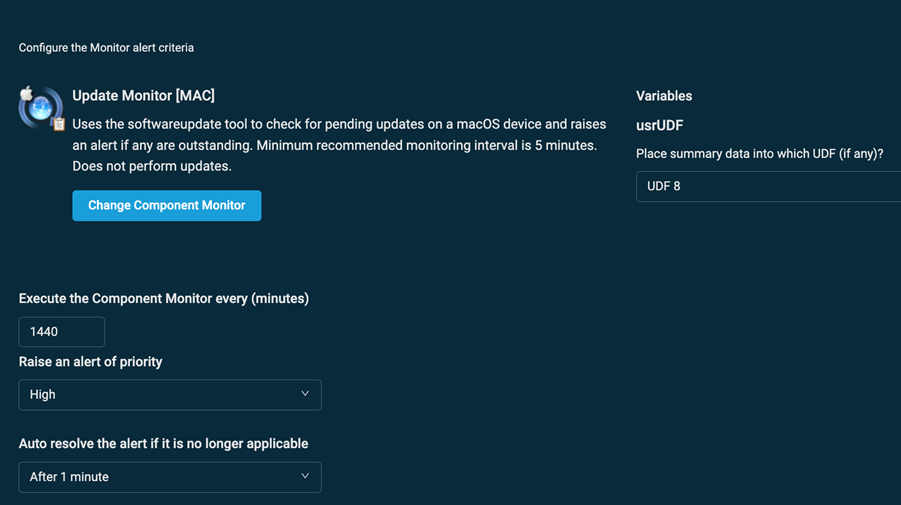
Once the monitor is applied to a macOS device you will see it as a standard monitor on the monitor device card.

If configured, you will also see the optional UDF output.

The monitor will also create an alert that can be sent out to Autotask PSA or an alternative ticketing system via email or a webhook.
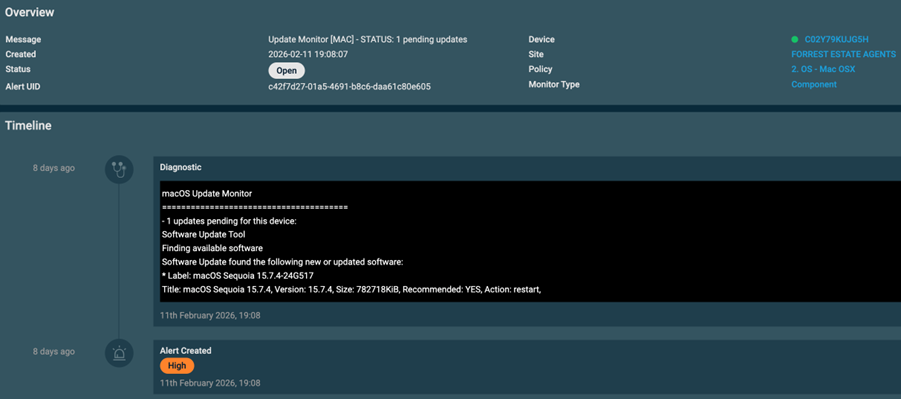
This is a passive approach to macOS patching. If you want to force the device to install missing updates you need to modify your new update monitor to run a response component. Refer to Forcing macOS to install updates.
To learn about how to easily keep track of macOS devices that need an update, refer to Tracking macOS patch status with dashboard widgets.
Forcing macOS to install updates
If you want your macOS update monitor to automatically install missing updates when detected, we'll need to utilize the Install Updates with SUPER [MAC] component.
We'll do this by adding it as a response component to the Update Monitor [MAC] component monitor. If you don't already have this set up, refer to Audit and report on missing patches.
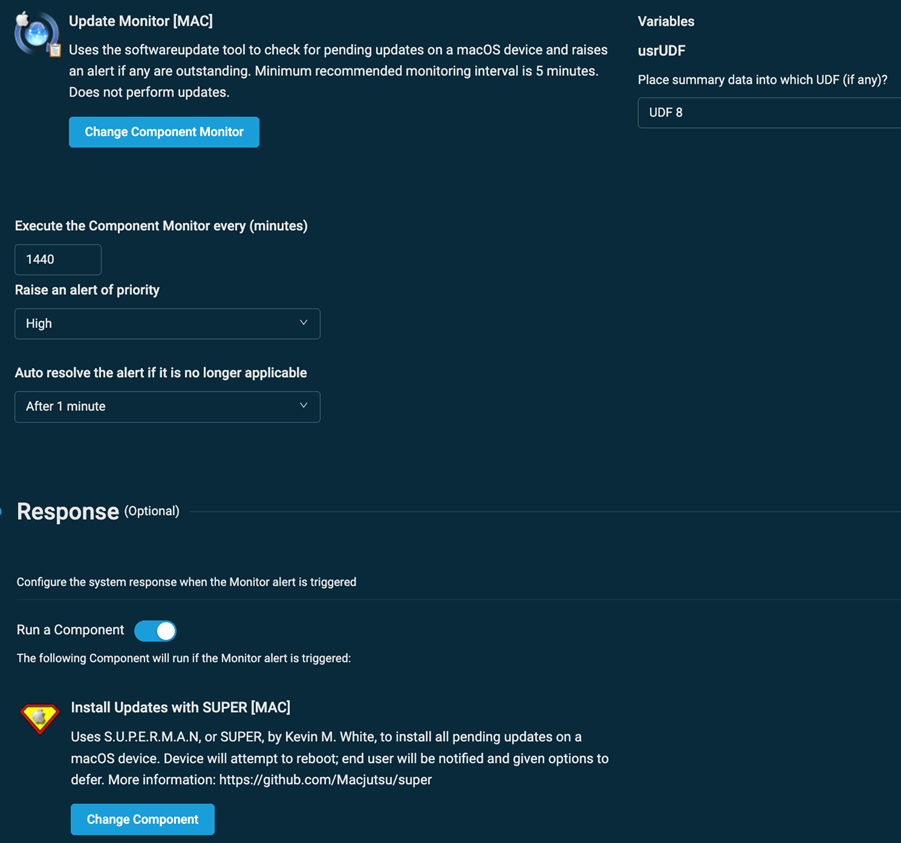
With the Install Updates with Super [MAC] component as the response, when the alert is triggered because there are missing patches, Datto RMM will force the device to download and install them.
NOTE The device will attempt to reboot to complete the updates but the end user will have the option to defer the reboot.
To learn about how to easily keep track of macOS devices that need an update, refer to Tracking macOS patch status with dashboard widgets.
Tracking macOS patch status with dashboard widgets
If you configured the Update Monitor [MAC] component to write the patch summary to a UDF, then you can create custom filters in order to track which devices need an update. For information on creating custom filters, refer to Creating a filter.
When creating the filters, keep in mind the following criteria:
- If the UDF contains UPDAL, then patches are available.
- If the UDF does not contain UPDAL, then no patches are available, the device is fully patched.
Once the filters have been created, you can use the Device Filter dashboard widget in a custom dashboard to show which devices are patched, and which need updates.